If your Google Ads conversion tracking is not functioning correctly, this can rapidly lead to erroneous data and poor optimization. From missing tags to lost GCLID parameters, several technical issues can prevent conversions from being recorded properly.
| What you’ll learn in this article: ● Why is Google Ads Conversion Tracking Not Working? ● Common Reasons Google Ads Conversion Tracking Stops Working ● How to Fix Google Ads Conversion Tracking Issues ● How to Prevent Conversion Tracking Failures |
Why is Google Ads Conversion Tracking Not Working?
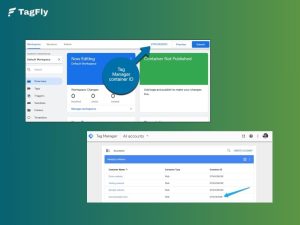
The most common reason Google Ads conversion tracking stops working is that the conversion tag does not fire correctly on the conversion page. This usually happens when the tracking code is installed incorrectly, the Google Tag Manager container has not been published, or the GTM trigger is not configured for the correct event or page.
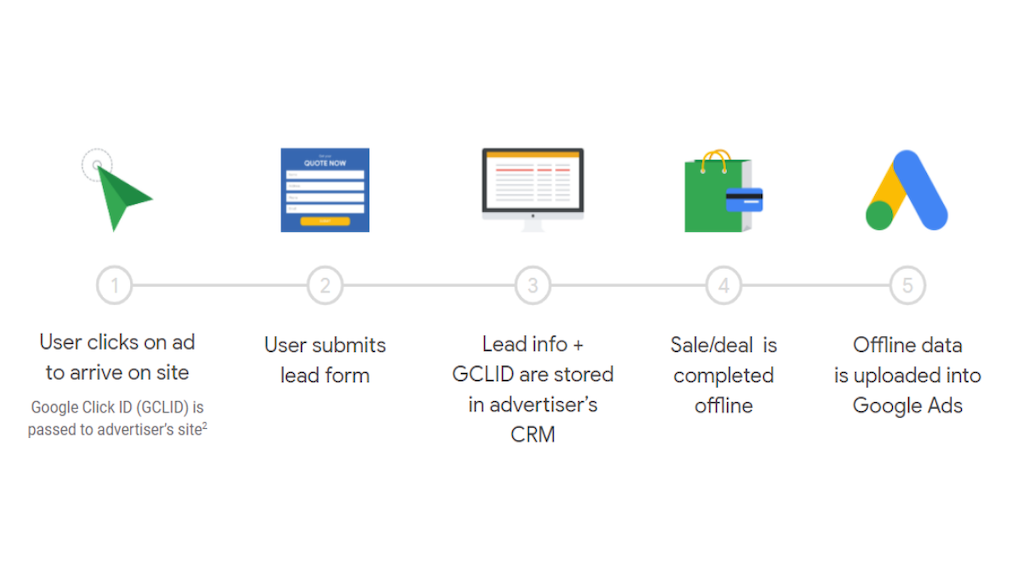
Another frequent cause is missing click data, such as the GCLID parameter. If auto-tagging is disabled or your website removes the gclid during redirects, Google Ads cannot connect the conversion back to the original ad click, so the conversion will not appear in reports even if the action actually happened.
Common Reasons Google Ads Conversion Tracking Stops Working
If your Shopify Google Ads conversion tracking is not working and conversion data suddenly disappears, one of the following common tracking issues is usually the cause.
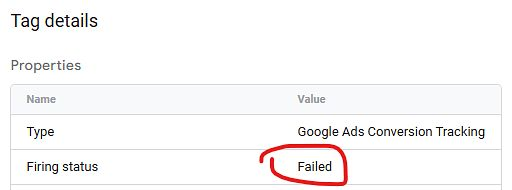
Unpublished GTM Containers
If you are using Google Tag Manager for tracking, any changes made to the tag, triggers, or variables will not work until the version is published. There are chances that the final update may not get published.
Conversion tracking may not work, while the Google Tag Manager setup is correct. It is essential to ensure that the latest version of the container is published before proceeding with the tracking issue.
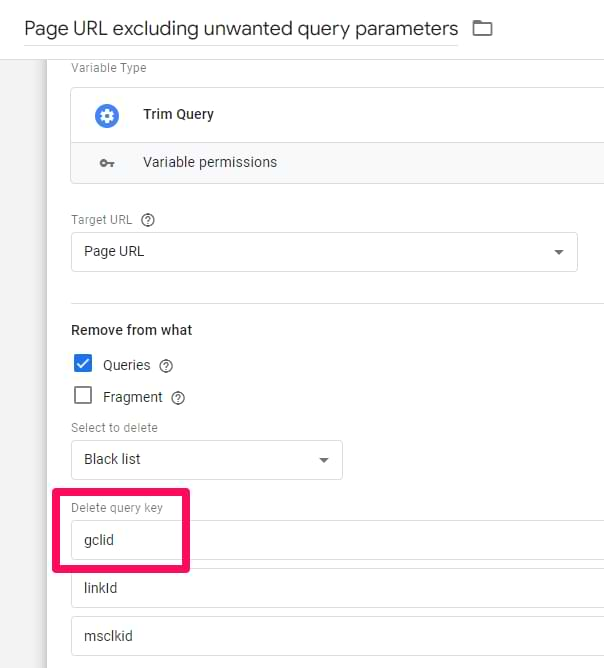
Missing GCLID
Google Ads uses the GCLID parameter to connect ad clicks with later conversions. If auto-tagging is disabled or a website redirect removes the gclid from the URL, attribution cannot happen.
In these cases, visitors may still convert on your site, but Google Ads cannot link the conversion back to the original ad click. This leads to missing or underreported conversion data.
Tag Deletion or Displacement
Conversion tracking tags or Google Tag Manager (GTM) code may get removed unintentionally due to website updates, theme changes, or code updates. Any minor changes to the website’s templates or scripts can cause the removal of the tracking tags or cause them to load incorrectly.
In such a case, the conversion event will not fire, and Google Ads will not be able to track any conversions.
Broken Conversion Linker
Conversion Linker tag is used for storing the details of the ad clicks in the first-party cookies. This tag should fire on every page so that Google Ads can track the conversion back to the correct ad click.
If the Conversion Linker tag is absent or incorrectly configured, the click data will fail to save. This usually results in a situation known as attribution failure, whereby the conversions still take place but are not attributed to the original ads.
Incorrect IDs or Labels
Each Google Ads conversion tag has a particular Conversion ID and Label that is associated with the correct conversion action. If these values are incorrect or do not match each other, the data will fail to save properly.
If the tag is correctly fired on the page, Google Ads will still fail to recognize the event because it does not correspond to any allowed conversion action. Therefore, it is essential to ensure that the ID and Label in the configuration of the conversion tag match the ones in Google Ads.
Consent Mode Blocking
There are many websites today that are using consent banners or other tools for data privacy. If Consent Mode is activated for the website and the user denies tracking permissions, the conversion tag may not be fired.
Google Ads will not be able to collect or process conversion signals unless consent settings are properly configured. Advanced settings for Consent Mode can be implemented.
Browser Protections & Ad Blockers
This is particularly true in recent times, given that modern browsers and other privacy tools are designed to prevent tracking technologies from being used. This means that conversion tracking scripts may not work in the background, and some of your users’ actions may not be reported in your Google Ads account.
Unlinked Accounts
If your conversions are imported from GA4, the connection between Google Ads and Analytics must remain active. If the accounts become unlinked or the event is deleted in GA4, conversion tracking will stop.
This type of setup discrepancy can be difficult to notice at first. Regularly verifying account connections and imported events helps ensure your tracking pipeline continues to work correctly.
Attribution Window Expiry
Each Google Ads conversion action has an attribution window that specifies how long after the ad click the conversion can be recorded. If a user converts after some time, the conversion will not be recorded.
For example, assume that the attribution window is set to 30 days. If a user converts or signs up after 30 days, the conversion will not be recorded. Checking the attribution settings can be helpful to avoid confusion.
Secondary Action Status
When creating conversion actions in Google Ads, advertisers are given two options: Primary or Secondary conversion actions. While secondary conversion actions are still reported, they are not reported in the main “Conversions” column.
This means that advertisers may assume that conversion tracking is disabled when, in reality, this is not the case. This is something that advertisers need to be aware of, and checking the status of the conversion action is a good way of troubleshooting this issue.
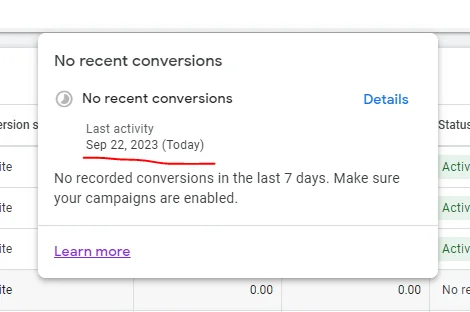
Low Conversion Volume
However, sometimes the conversion tracking is not functioning because of a lack of conversion events. Google Ads may display “No recent conversions”, even though the tag is functioning well.
There can be a lack of traffic or campaign activity. This can result in delayed results for conversion tracking. Testing can be done to confirm whether the tag is functioning well or not.
New EEA Requirements
Recently, in March 2024, advertisers who are targeting users in the European Economic Area are required to send consent signals to Google when tracking conversions. This is part of Google’s updated framework for privacy and compliance.
When advertisers are not sending these signals correctly, conversion tracking may be disabled or partially disabled. This is something that advertisers who are targeting users in the EEA need to be aware of.
Website Downtime
In addition to the above factors, the success of the conversion tracking also relies on the presence of your website. In case your website is down, the scripts will fail to load appropriately.
This problem is especially common on checkout confirmation or “Thank You” pages. When those pages fail to load, conversion tags cannot fire, resulting in missing conversion data.
How to Fix Google Ads Conversion Tracking Issues
Fixing issues when Google Ads not tracking conversions usually requires a combination of technical checks, proper configuration, and ongoing monitoring.
Strengthen Technical Tracking Implementation
Use server-side tracking, along with browser pixels, to minimize the effect of ad blockers and privacy limitations. Tools like Google Ads Enhanced Conversions or Meta CAPI can aid in the tracking of conversions that are not recorded by the browser tracking solution.
It is recommended to retain GCLID as well as first-party cookies, wherever feasible. When both server-side tracking as well as pixel tracking are used, a unique event ID should be used for tracking conversions to prevent any duplication.
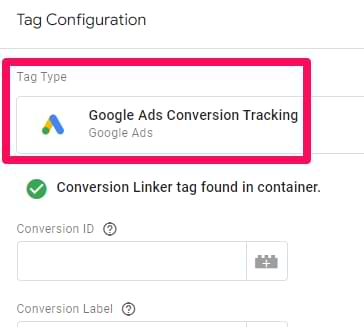
For Shopify stores, tools like TagFly can simplify both setup and debugging. It allows you to verify whether conversion events are being sent correctly to platforms like Google Ads or Meta, making it easier to identify missing tags, incorrect triggers, or attribution issues.
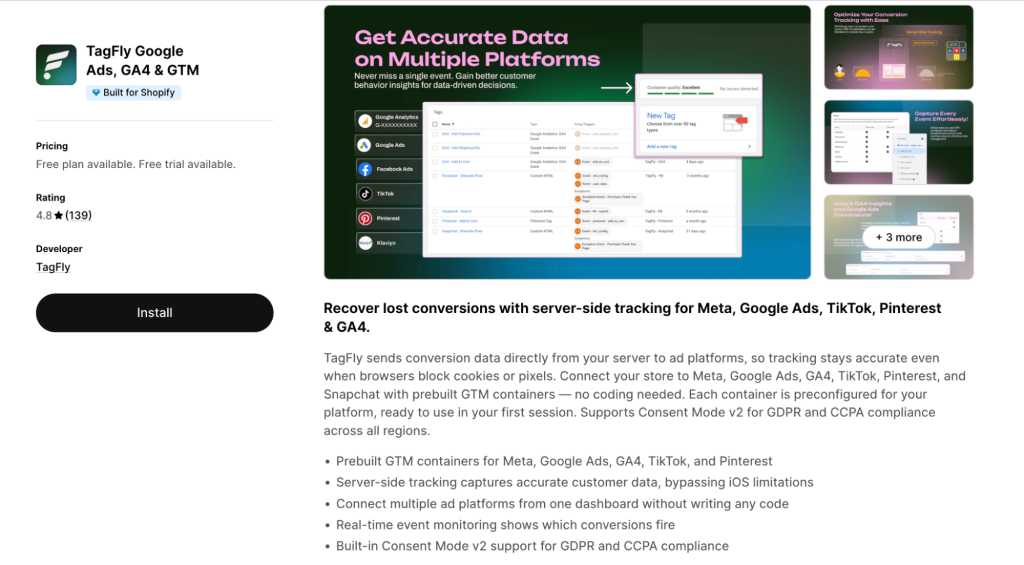
Optimize Your Conversion Tracking Setup
For better optimization of campaigns, assign the high-value actions, like purchase or lead, as Primary, while the lower-value actions are designated as Secondary.
Another solution for minimizing tracking problems is to use Google Tag Manager for handling all the tracking solutions. Ensure that the user data for Enhanced Conversions is correctly formatted as well as hashed.
Monitor and Maintain Tracking Performance
Review the tracking setup, especially after any updates to the website or the plugins used. This is one of the most common reasons for tracking problems.
You should also monitor conversion trends and set alerts for sudden drops. Comparing Google Ads data with Shopify or your CRM helps detect tracking gaps early.
How to Prevent Conversion Tracking Failures
Many tracking issues happen after website updates or tag changes, which can cause Google Ads conversion tracking failed. Following a few simple practices can help keep your conversion data accurate and prevent tracking failures.
Always Test Tags After Changes
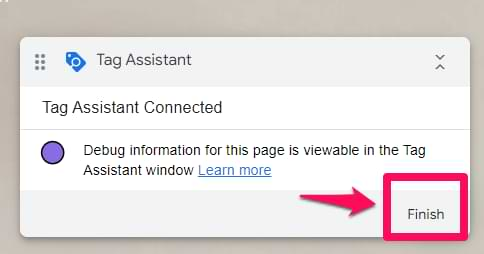
Whenever you make any changes to your webpage, install a new plugin, or make any alterations to the tracking scripts on your webpage, you need to perform a quick test to verify whether the tags are still firing correctly or not. This can be done using tools such as the Google Tag Assistant. Making small alterations to your webpage template can cause the conversion tracking scripts to stop working.
Keep Tracking Setup Simple
A complex tracking system increases the risk of configuration issues. Too many tags, triggers, or scripts can make it hard to pinpoint the problem areas.
A simple tracking system helps you manage your tracking configuration. This will also reduce the risk of tags interfering with one another.
Regularly Monitor Conversion Diagnostics
Google Ads provides a diagnostic tool to identify tracking issues. Checking this tool on a regular basis can help you identify issues before they affect your campaign performance.
You should also be on the lookout for conversion trends. This can help you identify sudden dips in your conversion records. This will give you a chance to fix the tracking issues before they cause significant losses.
Conclusion
When Google Ads conversion tracking is not working, it may be due to a number of reasons. Some of the common reasons may be a missing tag, a missing trigger, missing GCLID parameters, or a blocked tracking script.
By regularly testing your tracking setup, monitoring diagnostics, and using reliable tracking tools, you can quickly identify and fix these problems. Maintaining a clean tracking structure and checking tags after website updates will also help ensure your Google Ads conversion data stays accurate and reliable.