As an e-commerce merchant or agency, data is your lifeline. But until now, tracking that data across Google Analytics 4 (GA4) came with a frustrating limitation: one store, one GA4 property.
If you wanted to migrate to a fresh property, run tests without skewing your dashboard, or share raw data with an external marketing agency, there simply wasn’t a clean, native way to do it. You were stuck choosing between sharing sensitive master account permissions or risking messy, manual code implementations.
Those days are over.
We are thrilled to announce that TagFly now fully supports multiple GA4 pixels in a single Shopify store. Available now on our Growth plan, this update gives you total control over how, where, and to whom your e-commerce data is sent.
What’s New? Seamless Parallel Tracking
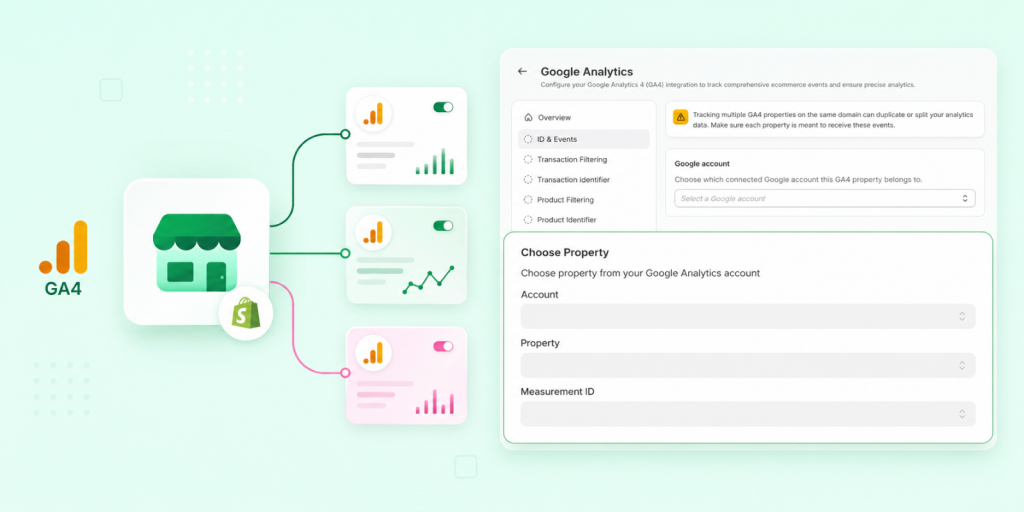
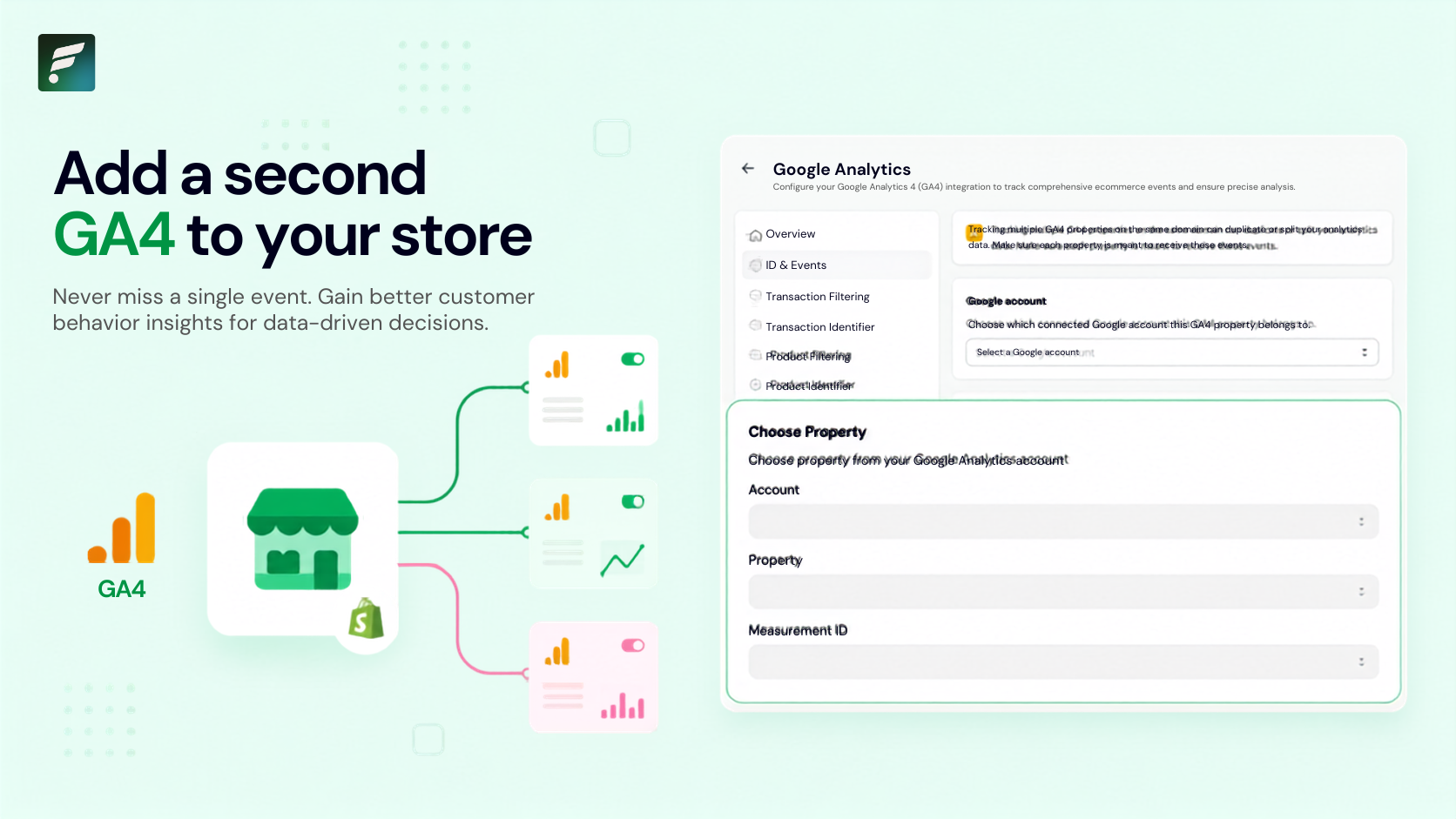
You can now connect multiple GA4 properties simultaneously – each with its own Measurement ID and API secret. Every connected property runs completely independently, meaning what you do to one will never disrupt the tracking of another.
Here is what this means for your day-to-day operations:
- Zero-Downtime Migrations: Need to switch to a fresh GA4 property? Run your old and new properties side by side. You can seamlessly verify the new setup without losing a single day of historical data.
- Agency-Friendly Collaboration: Stop wrestling with Google account permissions. Give your growth marketing agency its own dedicated property so they get the data they need, while you maintain full ownership of your primary brand property.
- Risk-Free Testing: Use one property as your official production dashboard and spin up a second property to test advanced configurations, custom audiences, or new event triggers without polluting your core reporting.
🔒 Your Existing Setup is Safe: This update is entirely additive. Your current GA4 connection will keep running exactly as it is right now. No downtime, no tracking pauses, and absolutely no reconnection required. You only act if you want to add a second property.
How it Works: Setting Up a Second Property
We’ve kept the setup process incredibly straightforward. Open your TagFly Google Analytics settings, navigate to the ID & Events tab, and follow three simple steps:
- Choose your Google Account: Select the connected Google account that owns the property.
- Select the Property: Choose the specific Account, Property, and Measurement ID (G-XXXXXXX).
- Configure Your Events: Choose exactly which e-commerce events (Page View, Add to Cart, Purchase, etc.) this specific property should track.
Server-Side vs. Client-Side Flexibility
For each property you add, you can decide how events are sent:
- Server-Side (Recommended for critical events like Purchase): Bypasses ad blockers and browser privacy features (like iOS ITP) by sending data directly via GA4 Measurement Protocol.
- Client-Side: Fires right from the shopper’s browser via
gtagto preserve browser-specific signals.
Best Practices for Multi-Pixel Success
Because tracking multiple properties on a single domain can easily lead to data inflation if mishandled, TagFly includes a built-in “Multiple GA4 Properties” Warning Banner to keep your data clean.
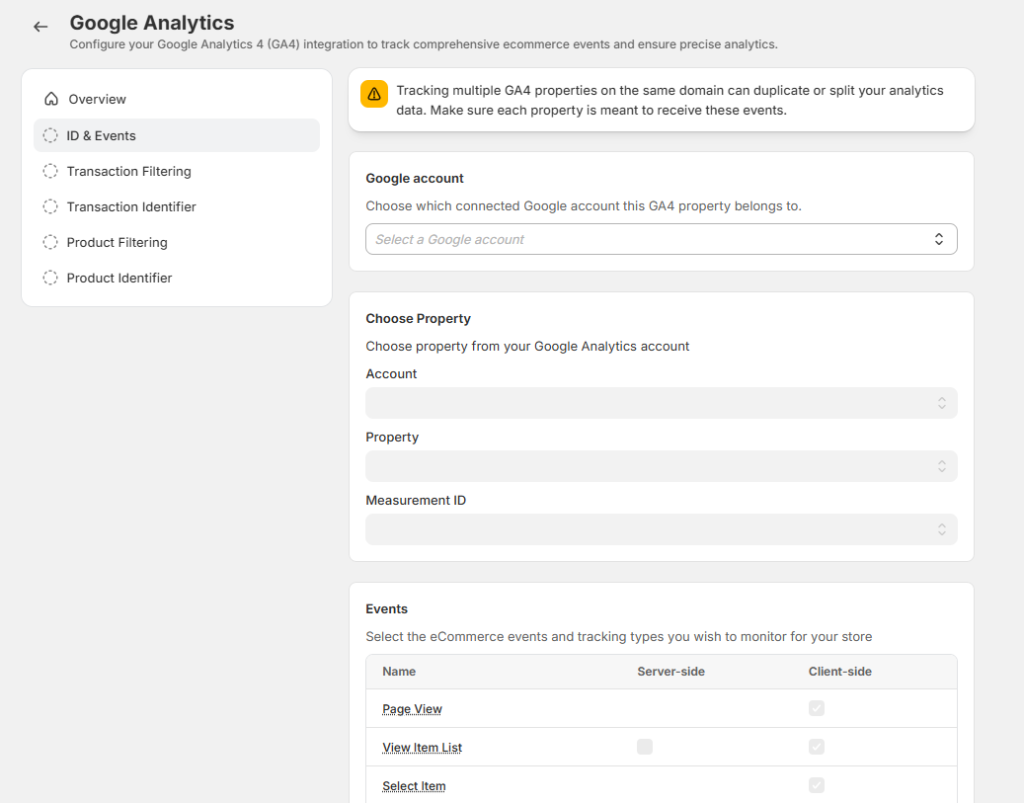
To get the most out of this feature, keep these senior analyst-approved best practices in mind:
- Check the Measurement ID: The Measurement ID is the ultimate destination. Ensure every property you add uses a different ID, or you will accidentally duplicate your data.
- Don’t Double-Count: Remember that properties run in parallel. If you send the same Purchase event to Property A and Property B, do not add their revenue numbers together in your internal spreadsheets.
- Label Everything: Give each property a crystal-clear name directly inside Google Analytics (e.g., “Brand Name – Main Production”, “Brand Name – Agency”, “Brand Name – Staging”) so your team never confuses them.
- Verify with DebugView: Once a new pixel is live, use GA4’s DebugView or TagFly’s Pixel Health tool to confirm events are firing end-to-end.
Ready to Level Up Your Analytics?
Multi-pixel tracking is live and waiting for you on the Growth plan.
If you aren’t sure how to configure your new multi-pixel layout or want a second pair of eyes to ensure your server-side deduplication is set up flawlessly, we’ve got your back. Simply drop us a line via our in-app chat, and a real analytics expert from the TagFly team will walk you through it step-by-step.
|
● Now live on Growth Run multiple GA4 properties in one store Migrate to a fresh property, hand your agency its own data, or test new events – each GA4 pixel runs independently, with zero downtime and no risk to your existing setup. Upgrade to Growth & Add Your Second GA4 Property → 7-day free trial · No credit card required · Cancel anytime |