Google Tag Manager event tracking gives marketing and analytics teams a reliable way to capture every meaningful user action on a website, from button clicks to completed purchases, without touching source code. Yet many teams either skip critical setup steps or collect data they never actually use.
| What you’ll learn in this article: ● What Is Google Tag Manager Event Tracking? ● Which Events Should You Track in Google Tag Manager? ● How to Set Up Event Tracking in Google Tag Manager ● Common Google Tag Manager Event Tracking Issues and Fixes ● Google Tag Manager Event Tracking Best Practices |
What Is Google Tag Manager Event Tracking?
Google Tag Manager event tracking records specific user actions on a website, such as button clicks, form submissions, and video plays, then sends that data to an analytics platform like Google Analytics 4.
GTM operates through three building blocks: tags, triggers, and variables. A tag fires a tracking script. A trigger tells GTM when to fire. A variable stores dynamic values both need to work.
According to W3Techs, Google Tag Manager is currently installed on 46.4% of all websites worldwide, making it the dominant tag management platform on the web. For any team running analytics or paid media, understanding how GTM event tracking works is no longer optional.
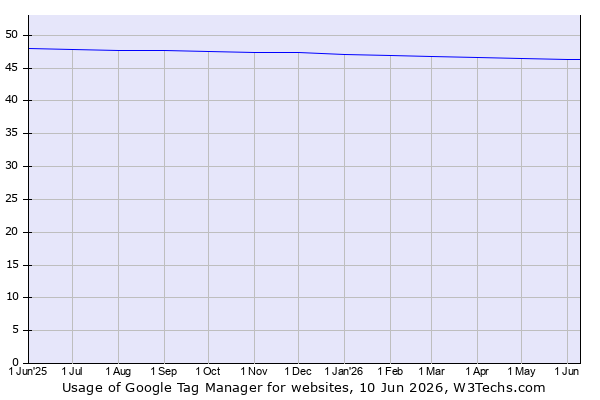
Source: w3techs
Which Google Tag Manager Events Should You Track?
Not every user action deserves a tag, but several event categories deliver the most actionable data for marketing and analytics teams.
Click Tracking
Clicks reveal how users interact with key page elements. Marketers should prioritize three areas:
- CTA buttons: Track clicks on “Buy Now,” “Get a Quote,” or “Start Free Trial” buttons to see which messages drive action and which pages need optimization.
- External links: GTM captures every moment a visitor clicks away to a third-party URL, helping teams understand which external references attract the most interest.
- Phone and email clicks: Every tap on a phone number or mailto link signals strong purchase intent, especially on mobile devices.
Form Tracking
Forms are direct conversion points, so tracking them accurately is essential for measuring campaign performance.
- Lead forms: Tracking submissions by page and traffic source helps teams identify which channels generate the highest-quality leads.
- Contact forms: General inquiry submissions indicate visitors who need more information before converting, exposing friction in the buyer journey.
- Newsletter signups: Email list growth tied to specific pages shows which content attracts long-term audience interest beyond a single visit.
Engagement Tracking
Beyond clicks, engagement data shows how deeply users consume content before making a decision.
- Scroll depth: Teams use scroll data to pinpoint where readers lose interest and where page content needs improvement.
- Video interactions: Play rate, pause points, and completion rate reveal whether video content holds attention long enough to influence decisions.
- File downloads: A PDF or whitepaper download signals high intent, and GTM connects each download event back to the traffic source that drove the visit.
Ecommerce Event Tracking
For online stores, ecommerce events connect user behavior directly to revenue data.
- Add to cart: Tracking which products users add most frequently exposes demand patterns and helps teams make smarter promotion decisions.
- Begin checkout: Capturing this event lets teams measure abandonment rates and test improvements to the checkout flow.
- Purchase events: Without reliable purchase tracking, attribution data across all marketing channels becomes inaccurate and misleading.
Prerequisites Before Creating Events
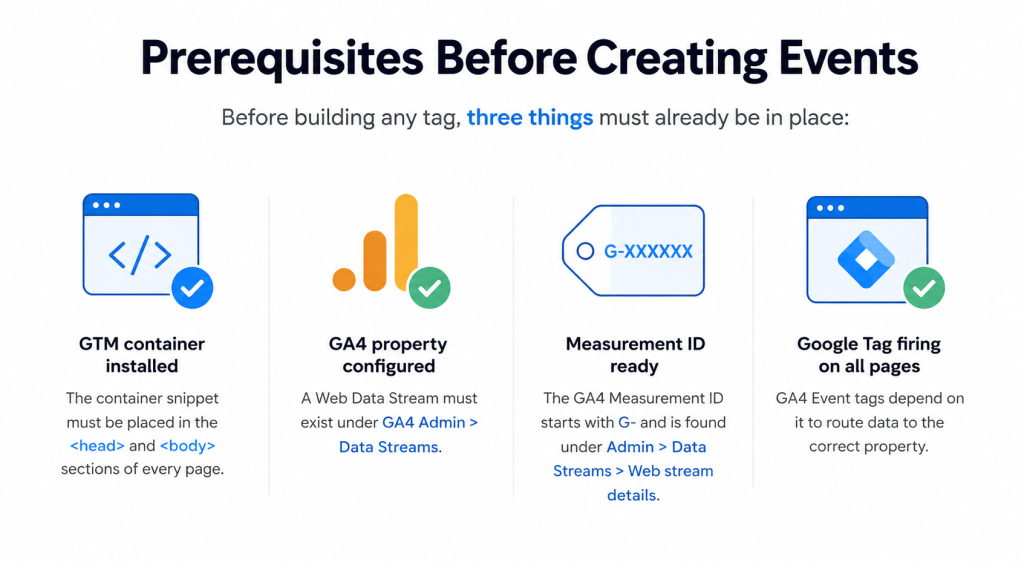
Before building any tag, three things must already be in place:
- GTM container installed: The container snippet must be placed in the <head> and <body> sections of every page.
- GA4 property configured: A Web Data Stream must exist under GA4 Admin > Data Streams.
- Measurement ID ready: The GA4 Measurement ID starts with G- and is found under Admin > Data Streams > Web stream details.
- Google Tag firing on all pages: GA4 Event tags depend on it to route data to the correct property.
Note: Shopify merchants can skip the manual container setup entirely. TagFly provides prebuilt GTM containers preconfigured for GA4 and Google Ads, so the tracking foundation is ready to deploy in minutes.
Understanding the Data Layer
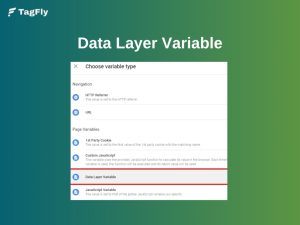
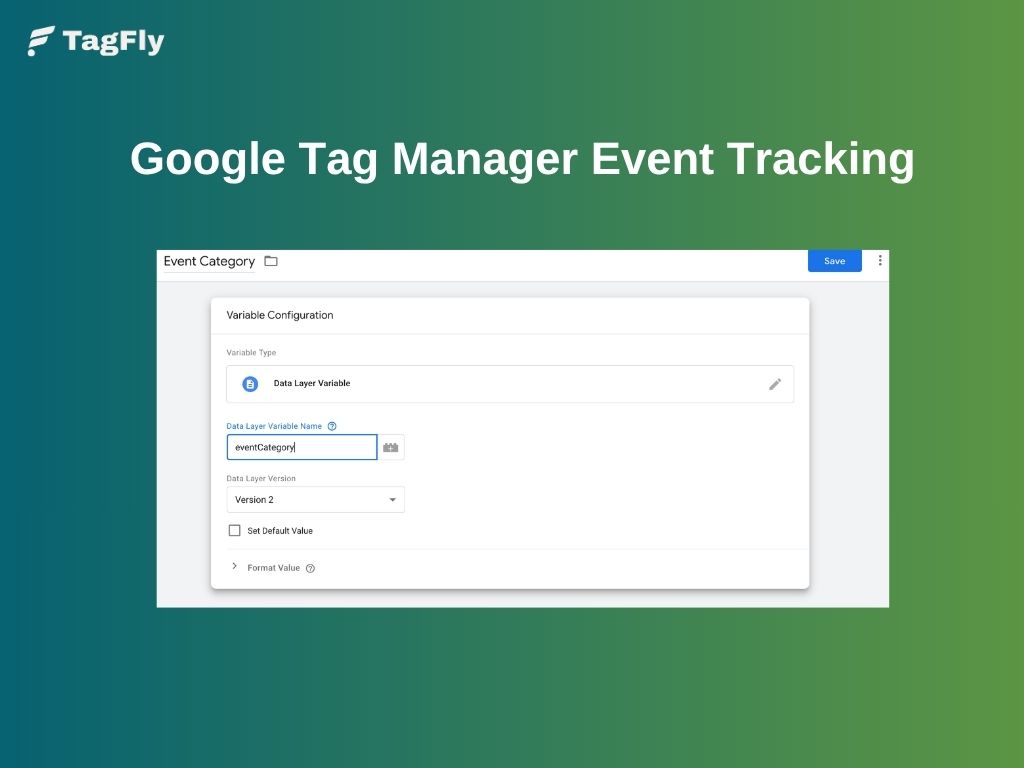
Before creating events in Google Tag Manager, it’s important to understand the data layer. Think of it as a bridge between your website and GTM that passes information about user actions and page activity.
When a visitor clicks a button, submits a form, or completes a purchase, the website can push that information into the data layer. GTM then uses those values to trigger tags and send accurate data to GA4.
You can inspect data layer events using GTM Preview Mode and Tag Assistant. Checking these values before creating tags helps ensure your events contain the right data and reduces debugging later.
How to Create Events in Google Tag Manager
Google Tag Manager removes the need to hardcode tracking scripts every time a new event requires measurement. Instead, teams configure tags, triggers, and variables directly inside the GTM interface and push changes live in minutes.
Step 1: Create a Trigger in GTM
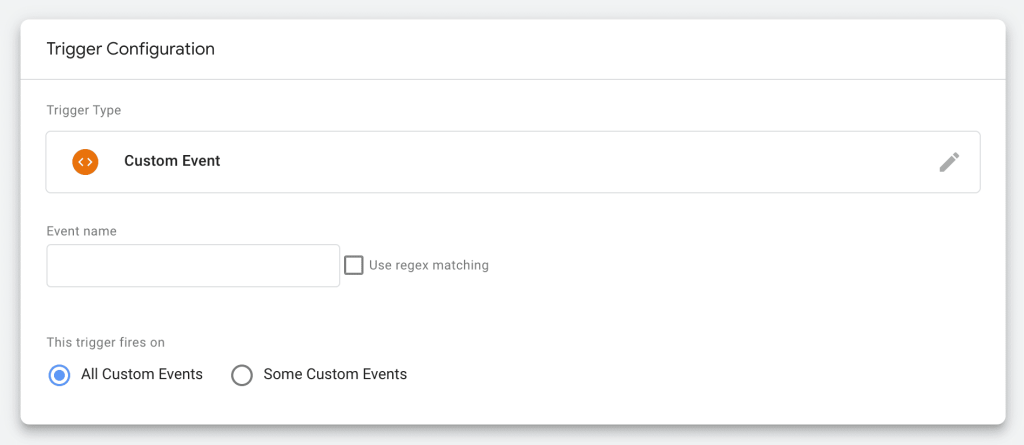
A trigger tells GTM when to fire a tag. Navigate to Triggers > New, click Trigger Configuration, and select the appropriate type:
- All Elements for button click tracking.
- Form Submission for form tracking.
- Scroll Depth for engagement tracking.
Step 2: Create a GA4 Event tag
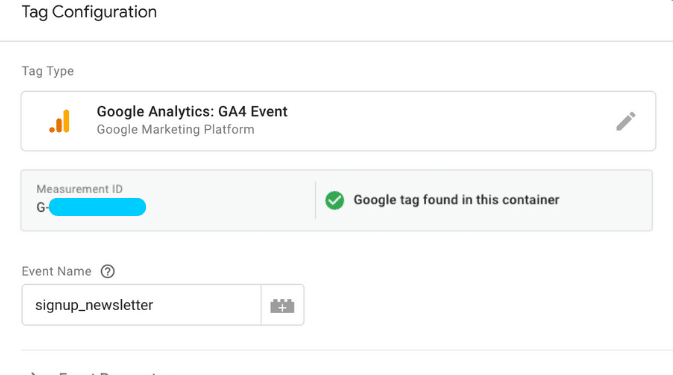
Go to Tags > New, click Tag Configuration, and select Google Analytics: GA4 Event. Then fill in three required fields:
- Measurement ID: Enter your GA4 Measurement ID (e.g., G-XXXXXXXXXX).
- Event Name: Use snake_case convention, such as cta_button_click or form_submit_contact.
- Triggering: Select the trigger created in the previous step.
Step 3: Add event parameters
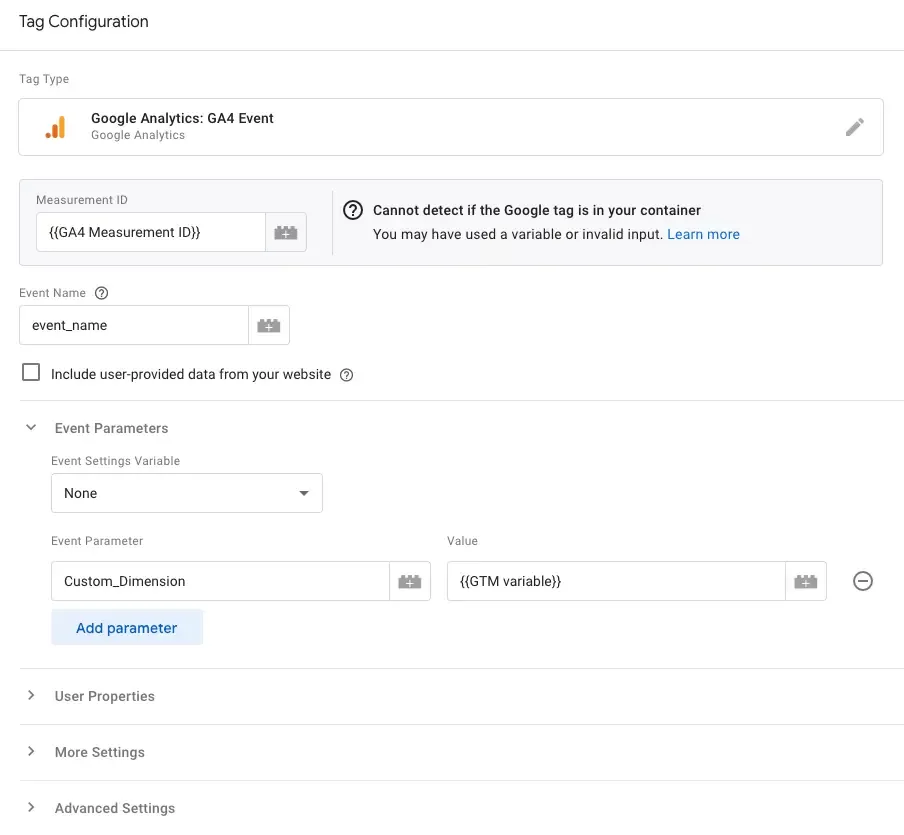
Inside the GA4 Event tag, scroll to Event Parameters and click Add Row. Common parameters to configure include:
- page_location mapped to {{Page URL}}
- click_text mapped to {{Click Text}}
- form_id mapped to {{Form ID}}
Step 4: Publish your container
All changes stay in a workspace draft until explicitly submitted. To go live:
- Click Submit in the top right corner of the GTM workspace.
- Add a clear version name, such as “Added CTA button click tracking.”
- Click Publish.
How to Test and Verify Your GTM Events
Using GTM Preview Mode
Preview Mode is the first line of defense before any tag goes live. To activate it:
- Click Preview in the top right corner of the GTM workspace.
- Enter the website URL in Tag Assistant and click Connect.
- Interact with the page: click buttons, submit forms, and scroll.
The Tag Assistant panel shows every event that fires, which tags triggered, and which conditions were met or missed in real time.
Using Tag Assistant
Tag Assistant works alongside GTM Preview Mode as the dedicated debugging environment.
When Preview Mode is active, Tag Assistant shows all tags firing, the variables available at each step, and the data layer state, giving teams full visibility into tag logic and trigger behavior.
Teams can also click the three-dot menu inside Tag Assistant and select Share to generate a debug session link for remote collaboration with developers.
Checking events in GA4 DebugView
When a GTM Preview session starts, it automatically enables debug mode for GA4, so any events that fire during the session appear in DebugView without mixing with regular website traffic. To verify events:
- GA4 > Admin > Data display > DebugView
- Interact with the page to trigger the event.
- Confirm the event name matches exactly what was entered in the tag.
- Check that all expected parameters, such as click_text or form_id, appear with correct values.
Confirming data in Realtime reports
Realtime reports confirm that data flows correctly into GA4 for general traffic beyond the debug session.
Navigate to Reports > Realtime and trigger the event on the page. The event should appear under Event count by Event name within seconds.
If the event appears in both DebugView and Realtime reports with correct parameters, the setup is fully verified and ready for production.
Common Google Tag Manager Event Tracking Issues and Fixes
Even a well-configured GTM setup encounters problems. Knowing the most frequent issues saves hours of debugging time.
Event Fires in GTM but Not in GA4
GTM Preview mode shows an event firing, but GA4 DebugView receives nothing. In most cases, the GA4 Measurement ID inside the Google Tag is incorrect or missing entirely.
Teams should double-check the Measurement ID, confirm the Google Tag fires on all pages, and verify that no ad blockers interfere during testing.
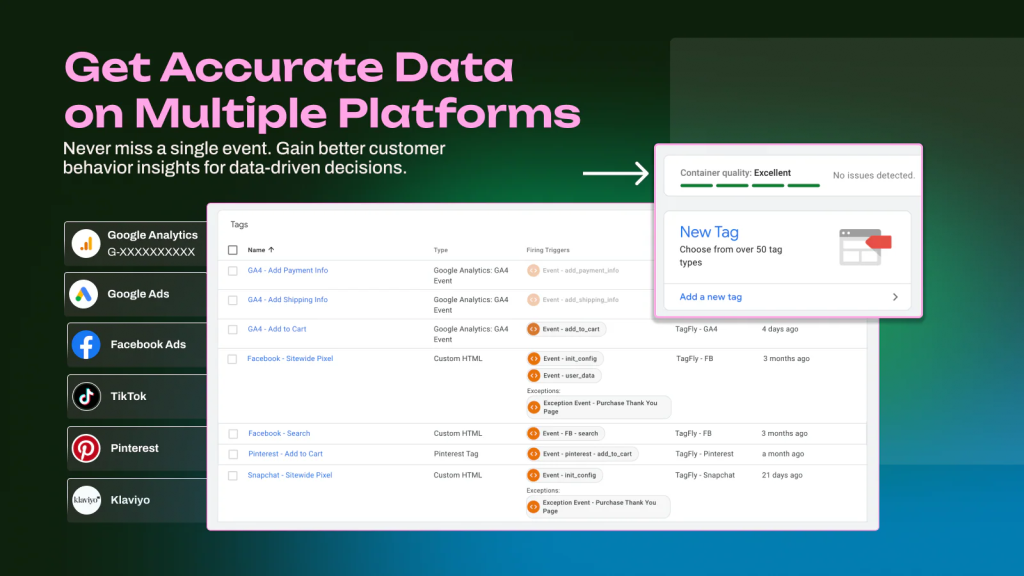
Shopify stores running client-side tracking alone face an additional risk: iOS privacy changes and ad blockers silently drop conversion events before they reach GA4. Tools like TagFly address this by routing conversion data server-side, bypassing browser-level blocking entirely.
Duplicate Events
Duplicate events inflate session data and distort conversion reports. The most common cause is multiple triggers assigned to the same tag, or a Google Tag firing more than once per page.
Auditing trigger conditions in GTM and checking the Triggers column for each tag quickly identifies the source of duplication.
Incorrect Trigger Conditions
A trigger set to “All Clicks” instead of a specific CSS selector or click ID will fire on unintended elements across the entire site.
Teams should use GTM Preview mode alongside the Variables panel to inspect exact click attributes before finalizing any trigger condition.
Missing Event Parameters
An event name appears in GA4 but carries no useful parameters, such as file_name or link_url. GTM requires explicit variable configuration for each parameter.
Teams must map the correct built-in or custom variables to every parameter field inside the tag before publishing.
Google Tag Manager Event Tracking Best Practices
A technically functional GTM setup is only half the job. Maintaining clean, reliable, and scalable event tracking requires discipline and clear standards across the entire team.
Use consistent event naming conventions
Inconsistent naming creates fragmented data that analysts cannot trust. GA4 treats form_submit, Form_Submit, and formSubmit as three separate events.
Teams should adopt a single format, with lowercase letters and underscores being the GA4 recommended standard, and enforce it across every tag before publishing.
Track business-critical actions first
Many teams make the mistake of tracking everything at once, which creates noisy, hard-to-interpret data sets.
A smarter approach prioritizes events that connect directly to revenue and pipeline: form submissions, purchases, and high-intent clicks. Secondary engagement events come after the core tracking layer is stable and validated.
Standardize event parameters
Event names alone tell an incomplete story. Parameters like page_location, form_id, and product_category add the context analysts need to segment and compare data meaningfully.
Every event should carry a consistent set of parameters so reports remain comparable across time periods and campaigns.
Maintain a tracking documentation sheet
Large teams lose tracking accuracy when no single source of truth exists.
A shared documentation sheet, updated every time a tag is added or modified, records event names, trigger conditions, parameter definitions, and the business question each event answers.
Without documentation, onboarding new team members or recovering from a broken tag becomes a slow, costly process.
Regularly audit and test events
GTM configurations break silently. A site redesign changes a CSS class, a developer removes a form ID, and suddenly a critical conversion event stops firing.
The consequences go further than most teams expect: a 2024 survey of over 550 data and analytics professionals by Precisely found that 67% of respondents do not completely trust their organization’s data for decision-making. Scheduled audits, at minimum once per quarter, catch these regressions before they corrupt months of historical data.
GA4 DebugView and GTM Preview mode give teams a systematic way to verify every event fires correctly across key pages before any changes go live.
Conclusion
Google Tag Manager event tracking is not a one-time setup. Websites change, campaigns evolve, and tracking configurations break without warning. Those who skip these steps accumulate noise that slows down analysis and distorts every report downstream.
Start with the business-critical events, validate every tag before publishing, and treat the tracking layer as a living part of the site rather than a background tool. Clean data compounds over time, and GTM is the system that makes it possible.