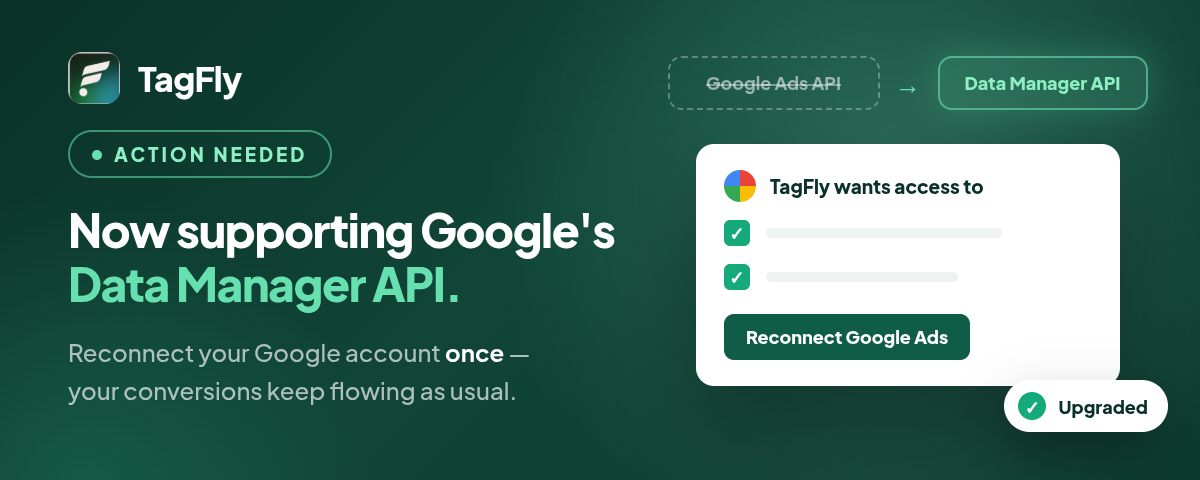
Google is moving offline conversion uploads from the Google Ads API to the new Google Ads Data Manager API, and it recommends that every app sending conversions migrate to the new system. For Shopify merchants, offline conversion uploads are the server-side purchase signals that tell Google Ads which clicks turned into revenue. If that pipe breaks, Smart Bidding loses the data it optimizes on.
TagFly now supports the Data Manager API. Your existing conversion setup does not change, but Google treats the new API as a separate permission. That means stores that connected Google Ads before the update need to reconnect their Google account once. It takes a few clicks, and this guide walks you through it.
Quick answer: Google is moving offline conversion uploads from the Google Ads API to the new Data Manager API, and TagFly already supports it. If you connected Google Ads before October 2, 2026, open TagFly -> Google Ads, click Grant permission, sign in with the same Google account and allow both permissions. Your conversion setup stays the same.
What is the Google Ads Data Manager API?
The Data Manager API is Google’s new, unified way for apps to send first-party data, including offline conversions, into Google Ads. It replaces the conversion upload method inside the Google Ads API that tracking apps like TagFly have used until now.
According to Google’s Data Manager API upgrade guide, the new API uses one data model for all Google Ads conversion use cases, supports encryption, and handles conversion adjustments in a single method. For merchants, the practical point is simpler: this is where Google is putting its conversion import investment, so it is where your tracking should live.
The shift is already underway. PPC Land reported that starting June 15, 2026, the Google Ads API stopped accepting new adopters of offline conversion imports, while existing integrations can keep using it during the transition. Search Engine Land also covered the move and Google’s recommendation to switch to the Data Manager API.
TagFly Now Sends Google Ads Conversions Through the Data Manager API
TagFly’s Google Ads integration is now built on the Data Manager API. Because Google does not carry your earlier permission over to the new API, TagFly needs you to grant it once more. After that, TagFly handles the rest.
- One-time reconnect: grant permission once per Google account and you are done.
- Same conversion actions: TagFly keeps sending conversions to the Google Ads conversion actions you already use.
- No reconfiguration: you do not need to recreate or edit any conversion in TagFly or Google Ads.
- No tracking gap: conversions keep flowing through the current method until you upgrade.
Who Needs to Reconnect Google Ads in TagFly?
Only stores that connected Google Ads before the new flow went live need to act. TagFly shows a banner at the top of the Google Ads page if your store is one of them.
| Your store | What to do |
|---|---|
| Connected Google Ads before October 2, 2026 | Reconnect once using the 4 steps below |
| Connected Google Ads on or after October 2, 2026 | Nothing. You are already on the new flow and will not see the banner |
| Several pixels, all using one Google account | Reconnect once. It covers every pixel on that account |
| Several pixels, using different Google accounts | Grant permission separately for each Google |
How to Reconnect Google Ads in TagFly (4 Steps)
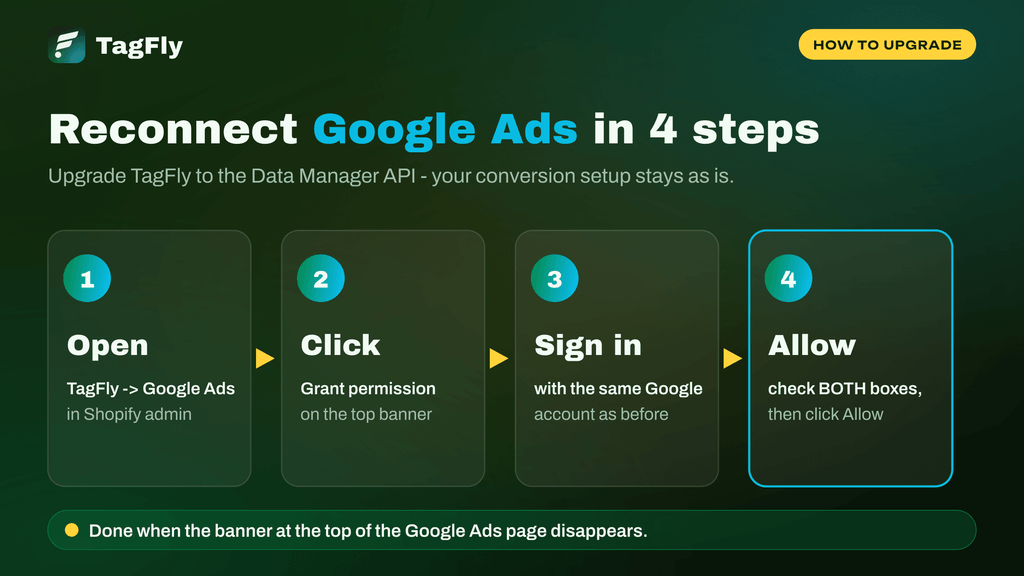
The whole upgrade happens inside TagFly and Google’s standard sign-in screen. Have the login for the Google account you originally connected ready.
- Open TagFly -> Google Ads in your Shopify admin.
- Click Grant permission on the banner at the top of the Google Ads page.
- Sign in with the same Google account you previously connected to TagFly.
- Check both permission boxes on Google’s permission screen, then click Allow.
Once the upgrade succeeds, the banner at the top of the Google Ads page disappears. That is your confirmation that TagFly is now sending conversions through the Data Manager API.
👉 Make sure both permission boxes are checked on Google’s screen. If one is left unchecked, TagFly cannot upload conversions through the new API and the banner will stay visible.
👉 Use the same Google account as before. Signing in with a different account will not upgrade the connection your conversion actions already use.
What Changes After You Upgrade to the Data Manager API?
Only the upload method changes. Everything you built on the Google Ads side stays exactly where it is.
| Item | Before the upgrade | After the upgrade |
|---|---|---|
| Upload method | Google Ads API | Data Manager API |
| Google Ads conversion actions | Your current actions | The same actions |
| Conversion setup in TagFly | Configured | Unchanged, nothing to recreate |
| Banner on the Google Ads page | Visible | Gone |
| Ready for Google retiring the old method | No | Yes |
Your server-side events, deduplication and the rest of your TagFly setup keep running as before. If you want a refresher on how those signals reach Google, our guide to GTM server-side tracking explains the flow.
What Happens If You Don’t Reconnect Google Ads?
Nothing breaks today. If you do not upgrade, TagFly keeps sending your conversions through the current method, with no interruption.
Google has not yet announced a final retirement date for the old offline conversion upload method. When it does, stores still on the old connection risk a sudden gap in Google Ads conversion data, which can throw off reporting and Smart Bidding right when it matters. Upgrading now means your tracking is already on the new system whenever that date arrives.
Reconnect Google Ads Today and Keep Tracking Ready
The Google Ads Data Manager API upgrade is live in TagFly now. Open TagFly -> Google Ads, click Grant permission, and you are set for whenever Google retires the old upload method. If you run into anything while reconnecting, our support team is available 24/7 in the app chat, and the TagFly help center covers each integration in detail.