Google Tag Manager itself stores very few cookies. Most cookies come from the tags you deploy through the container, such as Google Analytics or Google Ads. Marketers often blame GTM for cookie problems, yet the container only fires scripts. It never decides on its own which cookie to drop or how long that cookie should live.
| What you’ll learn in this article: ● Does Google Tag Manager Use Cookies? ● How Google Tag Manager Works with Cookie Consent ● How to Set Up a Cookie Banner in Google Tag Manager ● Best Practices for Managing Cookies in GTM |
Does Google Tag Manager Use Cookies?
The container script loads on your page, but it does not automatically write tracking cookies to the browser. GTM cookies, in the strict sense, barely exist.
The real question marketers should ask is which Google Tag Manager cookie actually comes from GTM and which one comes from a tag configured inside it. The gtm cookies label gets applied loosely across the industry, so a closer look at the architecture clears up the confusion.
What GTM does and doesn’t store
Four components make up a GTM container, and each one plays a different role:
- GTM container: loads the tag management script and reads rules from your workspace. It does not set tracking cookies on its own.
- Data Layer: holds structured information about the page or the user action, such as an event name or a transaction value. The data stays in the browser memory and does not persist as a cookie.
- Tags: the scripts that actually send data to third parties, such as Google Analytics, Meta, or a Floodlight pixel. These tags can create cookies, such as Google Analytics identifiers like
_gaand_gidor Google Ads identifiers such as_gcl_au, depending on the tag configuration. - Triggers and Variables: control when a tag fires and what data it passes. Neither one stores anything on the user’s device.
A single cookie does exist for internal GTM debugging in Preview mode, but it disappears once you close the debug session. Production traffic never receives it.
Which cookies come from GTM tags?
Every cookie a visitor picks up traces back to a specific tag or the underlying vendor script, not to the GTM container itself.
For example, Google Analytics can use cookies such as _ga and _gid, while Google Ads can use identifiers such as _gcl_au. The table below shows how common tags behave.
| Tool | First-party | Third-party | Requires Consent |
|---|---|---|---|
| Google Analytics 4 | Yes | Limited | Yes |
| Google Ads | Yes | Sometimes | Yes |
| Floodlight | Yes | Yes | Yes |
| Meta Pixel | Yes | Yes | Yes |
| Custom HTML | Depends | Depends | Depends |
GTM never equals a cookie creator. The tags carry that responsibility, and each vendor sets its own cookie names, durations, and domains. A Custom HTML tag can behave in almost any way, so an audit of that tag type matters more than an audit of the container settings.
How Google Tag Manager Works with Cookie Consent
A visitor’s consent choice needs to reach the tags in the container. Consent Mode and GTM consent checks work together to manage that flow, but they serve different purposes. Consent Mode communicates the user’s consent state to supported Google tags, while GTM consent checks can prevent a tag from firing until the required consent is granted.
What is Google Consent Mode?
Consent Mode is a Google framework that adjusts how Google tags behave based on the user’s consent status. Instead of blocking a tag outright, Consent Mode can send the tag in a limited, cookieless form when consent is missing. Analytics and advertising tags then adapt their behavior in real time, rather than firing blindly or failing completely.
Consent types GTM recognizes
GTM reads four consent signals through Consent Mode:
- analytics_storage: controls cookies used for measurement, such as Google Analytics.
- ad_storage: controls cookies used for advertising and remarketing.
- ad_user_data: controls whether user data gets sent to Google for advertising purposes.
- ad_personalization: controls whether ad personalization features, like remarketing lists, stay active.
Each signal defaults to “denied” until the visitor makes a choice, provided your CMP configures the default correctly.
Consent flow before and after user choice
A typical visit follows this sequence:
Visitor lands on the page > Cookie banner appears > Consent Mode signals update > GTM decides whether each tag fires
Before any interaction, GTM applies the default consent state you set through your CMP, usually “denied” for analytics and ads. Once the visitor accepts or rejects categories, the CMP pushes an update to the Data Layer, and GTM re-evaluates every tag against the new signals. Tags gated by consent then fire, adjust, or stay blocked, all without a page reload.

How to Set Up a Cookie Banner in Google Tag Manager
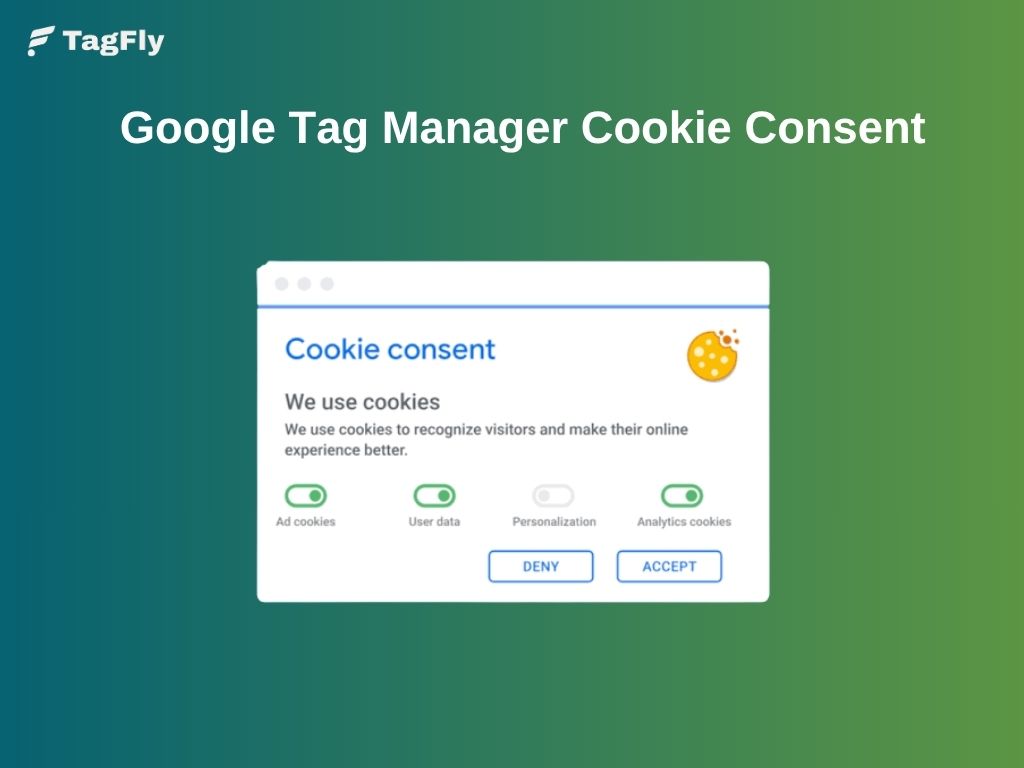
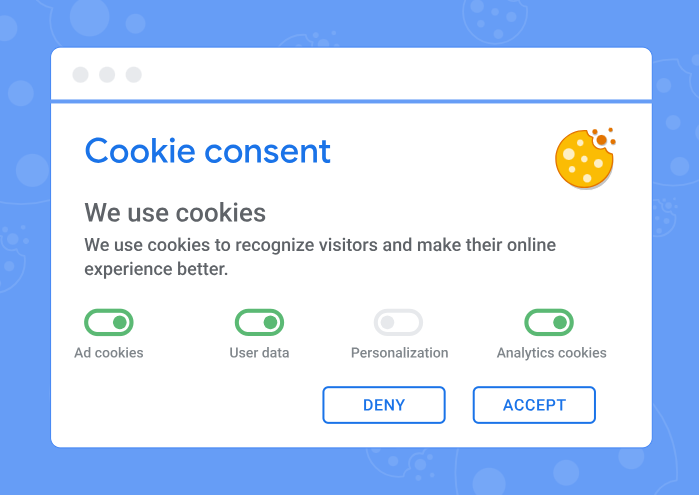
A banner alone does not create compliance. The banner needs to talk to GTM through Consent Mode, and every tag needs a consent check attached before it can fire. Setting up a Google Tag Manager cookie banner properly takes four steps.
Choose a Consent Management Platform (CMP)
Pick a CMP that supports Google Consent Mode v2 natively, since manual integration invites errors. Popular options include:
- Consentik
- Cookiebot
- CookieYes
- OneTrust
- Complianz
Each platform ships a template or a native GTM integration, so the setup usually takes less time through the CMP than through a custom script.
Configure Consent Mode in GTM
Set the default consent state as the very first tag that fires on the page, before any measurement tag. GTM offers a built-in Consent Initialization trigger for exactly this purpose. Once the default state loads, connect your CMP’s consent update event to the Data Layer so GTM can read changes as they happen.
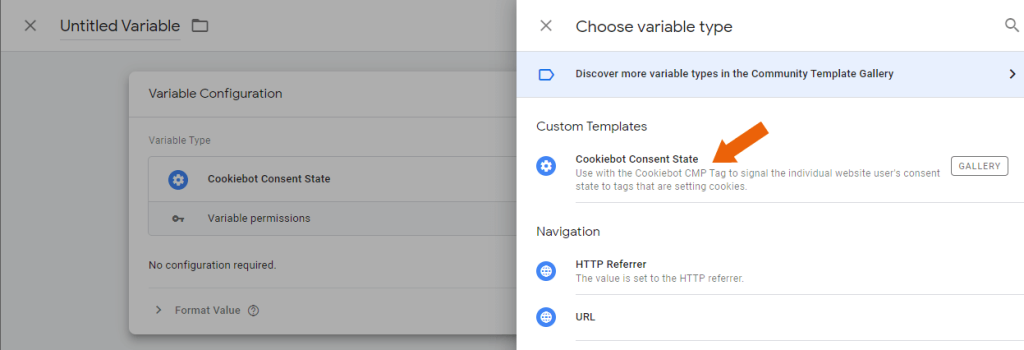
Block tags until consent is granted
Attach a Consent Check to every relevant tag, not only to the obvious ones like Google Analytics. Custom HTML tags and any third-party pixel deserve the same treatment, because an unchecked tag can fire before the user makes a choice and quietly create a compliance gap.
Test your implementation
Verify the setup before it goes live. Three tools cover most testing needs:
- Tag Assistant confirms which tags fire and in what consent state.
- GTM Preview shows the Data Layer events and consent signals in real time.
- Browser DevTools reveals the actual cookies written to the browser, so you can catch a tag that ignores the consent gate.
Google Tag Manager and Third-Party Cookies
Third-party cookies remain part of the advertising ecosystem, though their role keeps shrinking. Understanding Google Tag Manager third party cookies means understanding both the technology and the shifting browser landscape around it.
What are third-party cookies?
A third-party cookie gets set by a domain other than the one the visitor currently browses. Ad networks and analytics vendors rely on this mechanism to track a user across multiple websites, which builds a cross-site profile over time.
Where browsers stand on third-party cookies
Browser vendors take different approaches to third-party cookies. Safari and Firefox block third-party cookies by default, while Chrome continues to support them.
Google ended its Privacy Sandbox effort to phase out third-party cookies in Chrome in 2025 and decided not to introduce a new standalone choice prompt for users. Instead, users continue to manage cookie settings through Chrome’s existing Privacy and Security controls.
Impact on GTM and advertising
Fewer reliable third-party cookies mean weaker cross-site attribution for ad platforms. A GTM container built only around third-party pixels loses signal over time, and conversion data drifts further from reality with each browser update.
Advertisers who depend on remarketing lists feel this shift the most, since list sizes shrink whenever a browser restricts tracking by default.
How first-party data and Consent Mode help
A first-party strategy reduces the dependency on third-party signals. Three approaches help GTM setups stay resilient:
- Enhanced Conversions: sends hashed first-party data to Google Ads to fill measurement gaps.
- Server-side tagging: moves tag processing to a server you control, which improves data ownership and reduces client-side cookie exposure.
- First-party measurement: prioritizes data collected directly by the website, rather than data borrowed from a third-party cookie.
TagFly: A Shopify App That Simplifies GTM Cookie Consent
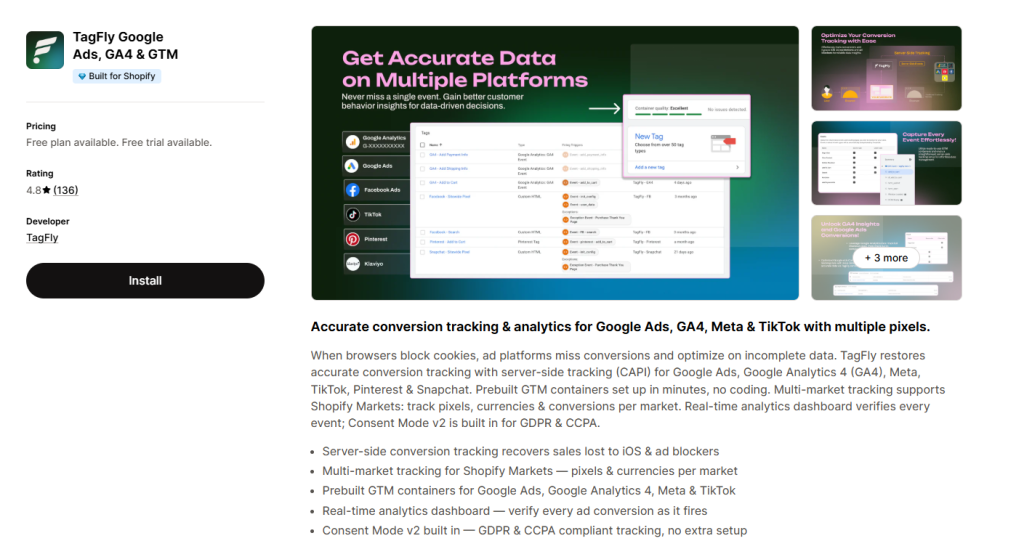
Shopify merchants often hit a wall when they try to connect GTM, Consent Mode, and server-side tracking without a developer on hand. TagFly addresses that gap directly inside the Shopify App Store, and Shopify’s own “Built for Shopify” badge confirms the app meets the platform’s standards for performance and integration.
TagFly ships prebuilt GTM containers for Google Ads, GA4, Meta, and TikTok, so a store owner can set up server-side tracking within minutes and without writing code. Consent Mode v2 comes built into the app by default, which keeps GDPR and CCPA compliance intact without a separate configuration step. The app also covers a few gaps that plain GTM setups tend to miss:
- Server-side conversion tracking (CAPI) recovers sales data lost to iOS restrictions and ad blockers.
- Multi-market tracking supports Shopify Markets, so pixels and currencies stay accurate per market.
- A real-time analytics dashboard verifies every event as it fires, rather than leaving a store owner to guess at data quality.
- Consent Mode v2 stays active across every connected channel, not only inside GA4.
Best Practices for Managing Cookies in GTM
A well-governed container avoids both compliance risk and data loss. Apply these practices consistently:
- Fire tags only after consent, never before.
- Use the built-in Consent Checks on every tag, including custom scripts.
- Minimize unnecessary tracking, since every extra tag adds another cookie to justify.
- Audit custom HTML tags regularly, because they bypass GTM’s native cookie visibility.
- Keep the CMP and GTM synchronized, especially after a CMP update or a container migration.
- Test consent behavior on a recurring schedule, not only at launch.
- Document consent updates so your team can trace a compliance question back to a specific change.
FAQs
Can GTM work without a cookie banner?
GTM can run without a banner, but any tag that sets a non-essential cookie then fires without consent, which creates compliance risk under most privacy laws.
How do I stop tags before consent?
Attach a Consent Check to each tag and set the default consent state to “denied” through the Consent Initialization trigger, before any other tag loads.
Does GTM support Google Consent Mode?
Yes. GTM reads all four Consent Mode signals natively and adjusts tag behavior based on the visitor’s choice.
Are third-party cookies required for Google Analytics?
No. GA4 operates mainly through first-party cookies, though certain cross-domain or advertising features rely on third-party signals in specific configurations.
How can I verify that consent is working correctly?
Run GTM Preview alongside Tag Assistant, then confirm the actual cookies in Browser DevTools. All three should agree on which tags fired and under what consent state.
Conclusion
GTM plays the role of a messenger, not a cookie factory. Every cookie on a site traces back to a specific tag, and that distinction should guide any conversation about compliance. Consent Mode gives GTM the signals it needs to fire tags responsibly, while a properly configured cookie banner turns those signals into a working system.