When managing an active Shopify store, staying on top of ad tracking and pixel health often requires constant context switching. Whether updating inventory, reviewing order volumes, or auditing marketing performance, verifying that tracking is working properly has traditionally meant pausing your work, opening the TagFly app, navigating to the right tab, and applying specific filters.
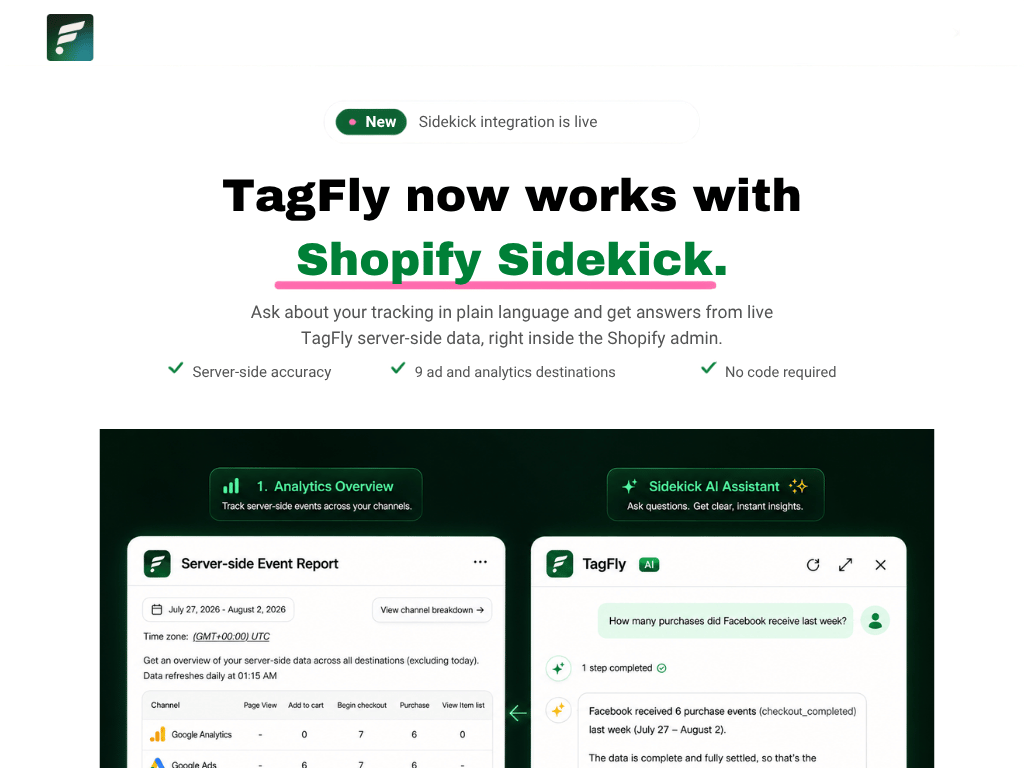
The new TagFly integration with Shopify Sidekick eliminates that friction entirely. By bringing TagFly’s tracking intelligence directly into Shopify’s native AI assistant, you can now check pixel health, review ad platform event deliveries, and identify failing events in under a second – without ever leaving your Shopify Admin.
Core Pixel Health and Conversion Tracking Queries Supported in Sidekick
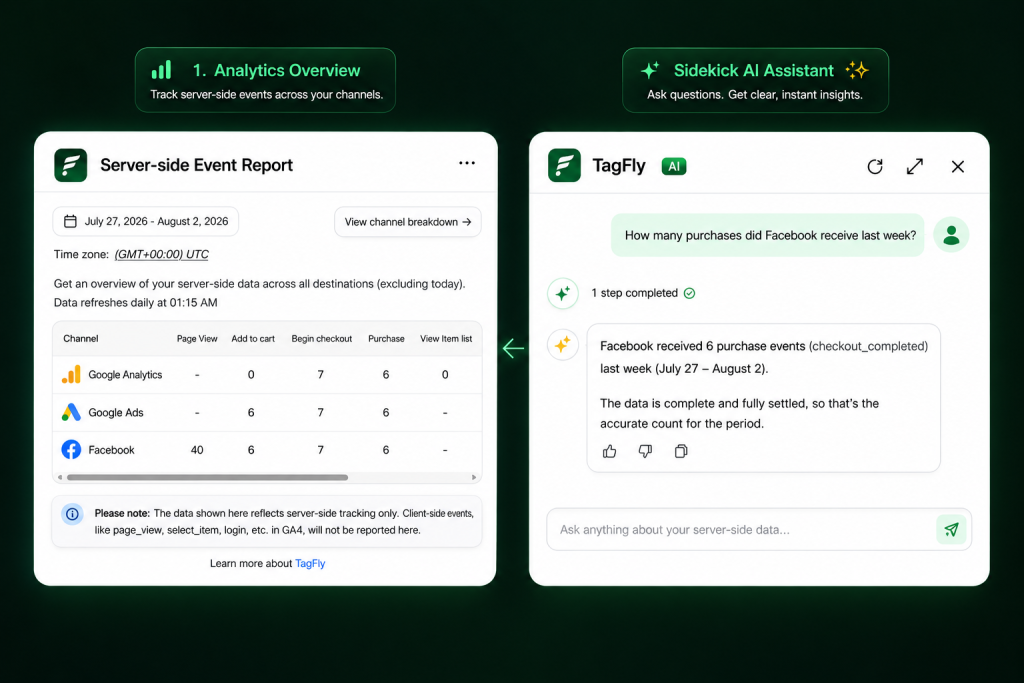
This integration allows merchants to query TagFly’s real-time and aggregated tracking data using natural language directly inside the Sidekick conversation panel. Every response aligns with your TagFly reporting metrics and includes direct deep links to the relevant Pixel Health or Realtime Dashboard page for instant investigation.
Merchants can use Sidekick to handle three essential tracking inquiries:
1. Instant Pixel Health and Configuration Audits
Ask questions like “Are my pixels working?” or “Any problems with my pixel setup?” to receive a rapid diagnostic summary:
- Overall Status: A quick verdict confirming whether your store’s tracking setup is healthy.
- Three Diagnostic Scores: Matches the Setup (configuration), Delivery (event transmission), and Data Quality (parameter completeness and accuracy) scores from your TagFly Pixel Health dashboard.
- Prioritized Issue Detection: Highlights the most critical issues affecting your store so you know what needs immediate attention.
2. Multi-Channel Ad Event Delivery Verification
Query the exact number of tracking events delivered to your connected marketing channels using prompts like “How many purchases did Facebook receive last week?” or “How many Add to Cart events went to TikTok yesterday?”
- Granular Filtering: Query by advertising channel (e.g., Meta/Facebook, Google Ads, TikTok), event type (e.g., Purchase, Add to Cart, Begin Checkout, Page View), and specific date ranges.
- Dashboard Alignment: Figures reflect the exact aggregated counts shown in your TagFly reporting.
3. Rapid Failure Diagnostics and Error Breakdown (Last 24 Hours)
When attribution numbers look inconsistent in your ad manager, ask “Are any of my events failing?” or “Why are my Facebook events failing?”
- 24-Hour Failure Triage: Retrieves the total number of failed events across the last 24 hours.
- Channel & Error Breakdown: Groups failures by channel and displays the exact error reason (matching the error column in TagFly’s Realtime Dashboard) so you can quickly isolate issues.
Why Integrated Pixel Diagnostics Protect Your Shopify Ad Spend and ROAS
Maintaining accurate conversion data is critical for ad platform optimization, return on ad spend (ROAS), and attribution modeling. Bringing diagnostic checks into your daily admin workflow delivers clear operational benefits:
Faster Incident Response and Zero Workflow Interruption
Catching dropped events or configuration errors early prevents wasted ad spend and broken retargeting audiences. Instead of scheduling dedicated audit sessions or interrupting customer service tasks, you can run a 5-second tracking check whenever you are already working in Admin.
Read-Only Security by Design
Sidekick functions as a reporting layer, not a configuration editor. It cannot alter your pixel setup, disable integrations, or modify event logic. This ensures team members can safely check tracking performance without the risk of accidental configuration changes. All setup adjustments remain securely managed inside the TagFly app.
Native Accuracy with Built-in Escalation
Answers are pulled directly from TagFly’s backend engine. If a query flags an issue, Sidekick provides a one-click link directly to the relevant TagFly page – letting you move from a high-level question to granular resolution in seconds.
Technical Specifications: Plan Tiers, Data Latency, and Read-Only Security
Understanding how data flows between Shopify Sidekick and TagFly helps you interpret your metrics accurately and choose the right view for each task.
Here are the key operational details to keep in mind:
- Zero Additional Cost: The Sidekick integration is included on all TagFly plans (Free, Basic, and Growth) with zero setup required.
- Plan-Based Issue Visibility: The number of pixel health issues displayed directly in Sidekick follows your plan tier:
- Free: Displays a demo preview.
- Basic: Displays the top critical issue, total issue count, and a direct link to TagFly.
- Growth: Displays up to 5 top issues ranked by severity.
- Data Freshness: Aggregated event statistics update on a daily cadence and may carry up to a 1-day aggregation window. If you need live, second-by-second event logs, use the link provided in Sidekick to open TagFly’s Realtime Dashboard.
- Ad Platform Discrepancies: TagFly reports raw events sent and delivered from your store. Keep in mind that external ad platforms (Meta, Google, TikTok) apply their own deduplication, attribution windows, and filtering rules to their reports.
How to Check Pixel Health and Event Delivery in Shopify Sidekick (3-Step Setup)
Getting started requires no manual configuration, API keys, or code installation. As long as TagFly is installed on your store and Sidekick is enabled on your Shopify account, the integration is ready to use immediately.
- Open Sidekick from the top bar or sidebar inside your Shopify Admin.
- Ask a tracking question in plain language (e.g., “Are my pixels working?” or “How many purchases did Google Ads receive last week?”).
- Review the diagnostic summary, and click the included link if you want to inspect the full details in TagFly’s Pixel Health or Realtime Dashboard.
Start Auditing Your Pixels Directly in Shopify Admin
Open your Shopify Admin, launch Sidekick, and run your first tracking check today. If you need assistance or have questions about optimizing your pixel health, explore the TagFly Documentation or reach out to the TagFly support team directly.