Conversion tracking is one of the most fundamental systems in Google Ads, and also one of the easiest to misconfigure. A clean tracking setup is the difference between scaling confidently and optimizing in the dark.
| In this article, you’ll learn: ● What conversion tracking is and why it matters ● How Google Ads records and attributes conversions ● The different types of conversions you can track ● How to set up tracking (client-side & server-side) ● Best practices to keep your data accurate and reliable |
What is Conversion Tracking?
The tracking of conversions is the process of keeping a record of the actions that users take after they have interacted with your advertisements or your website, and which are valuable actions like buying, signing up, generating leads, or any other major event. It indicates the campaigns that are genuinely resulting in business gains, not just clicks or traffic.
When an advertisement is clicked on, and the person performs an action that is considered to be meaningful, then the occurrence is reported back to your analytics or advertising platform. This then opens up a view of what is working, what is not, and where your budget is having the greatest impact.
In brief, conversion tracking can tell you which ads are profitable and which are not, hence being one of the cornerstones of every successful digital marketing strategy.
Why Conversion Tracking Matters?
Analyzing conversions is a tracking method that is indispensable for it shows the paths of the marketing efforts that lead to the most valuable business outcomes. It not only dispels the wrong and misleading concepts but also provides true revenue, leads, and engagement data.
Key reasons it matters:
- Identifies the campaigns that generate actual conversions, helping separate high-performing ads from budget wasters.
- Feeds accurate signals into ad platforms, allowing Google Ads to optimize bidding and targeting more effectively.
- Reduces wasted spend by highlighting keywords, audiences, or placements that don’t contribute to results.
- Clarifies user behavior across the funnel, showing where people drop off and which touchpoints influence the final action.
- Improves ROI/ROAS measurement, making it easier to scale winning campaigns and refine underperforming ones.
How Google Ads Conversion Tracking Works
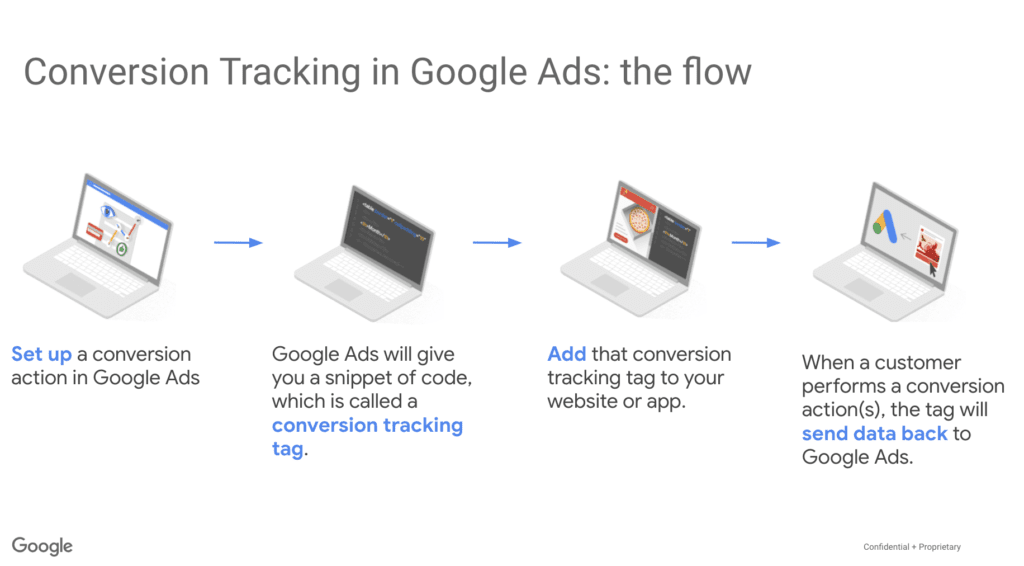
Google Ads conversion tracking is a method that associates a user’s interaction with the ad to a valuable action performed later on your site, like a purchase, submission of a form, or sign-up. This is accomplished through the installation of a small code snippet (a conversion tag) that will be automatically activated upon the completion of the action. The event is thus sent back to Google Ads for reporting and optimizing.
Whenever a person clicks on your ad, Google gives that particular interaction a unique identifier. When there is a conversion, the corresponding tag picks up the event, and Google matches it with the previous click. As such, advertisers get a better picture of the ads and keywords that bring in actual results.
Google Ads can track conversions using:
- Browser-based tracking (via Google tag or GTM)
- Enhanced Conversions (hashed customer data for higher accuracy)
- Server-side tracking (using GTM Server for more reliable measurement)
Types of Conversions You Can Track in Google Ads
1. Website Actions
Conversions on the website may come in the form of purchases, submissions of forms, sign-ups, add-to-cart events, and any action that is regarded as valuable on your site. These kinds of actions are the most typical signals used for performance campaigns because they indicate which ads are generating measurable outcomes very clearly.
In conclusion, this kind of conversion gives you a clearer picture of user intent, landing pages that need optimization, and campaigns that need to be refined according to the most significant actions.
2. Phone Call Conversions
Google Ads can monitor calls that are placed through your ads directly, website calls, or clicks on the phone number. This is very advantageous for companies that provide services, local businesses, and any brand whose customers make transactions offline.
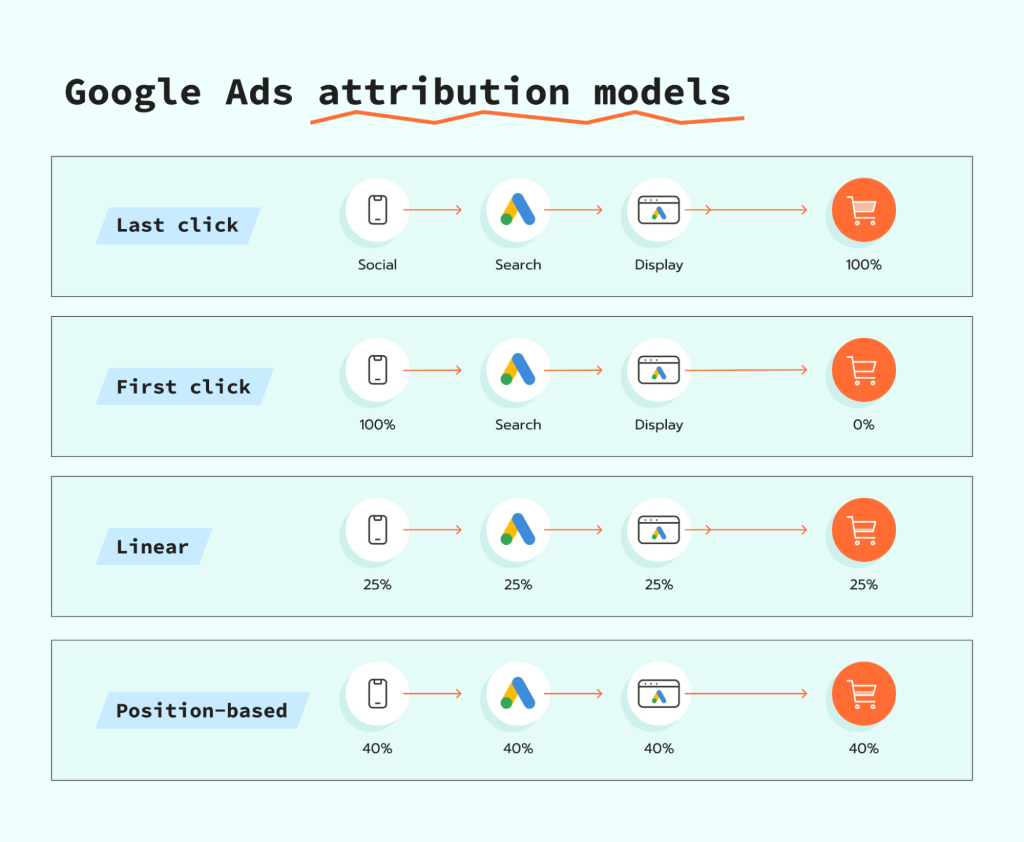
Consequently, it is much more manageable to associate your ad expenditure with real inquiries or bookings, and you can be sure that every call is included as part of your attribution model.
3. App Conversions
If you run mobile app campaigns, Google Ads lets you track installs, in-app purchases, subscriptions, or any key event triggered within the app. These signals help measure long-term user value, not just initial downloads.
With this data, Google can optimize toward high-quality users, improving ROAS for app-driven businesses.
4. Import Offline Conversions
Offline conversions are actions that are performed outside of the website. These actions can be CRM updates, in-store purchases, or even sales that your team has handled. The import may be done back to Google Ads in order to finalize the attribution loop.
This process provides a performance view that is more complete, and at the same time, it ensures that the campaigns get the credit of driving the revenue that is generated in the real world.
How to Set Up Conversion Tracking in Google Ads?
This section walks you through the standard client-side conversion setup in Google Ads, based on the latest Google Ads UI.
Instead of going too deep into every conversion type, this guide focuses on the core flow and highlights where setups start to differ, so you know exactly what to configure and where to look next.
Where to Start in the Updated Google Ads Interface
In the new Google Ads UI, conversion tracking is managed from:
Tools & Settings > Measurement > Conversions
This is where you create, manage, and verify all conversion actions across your account.
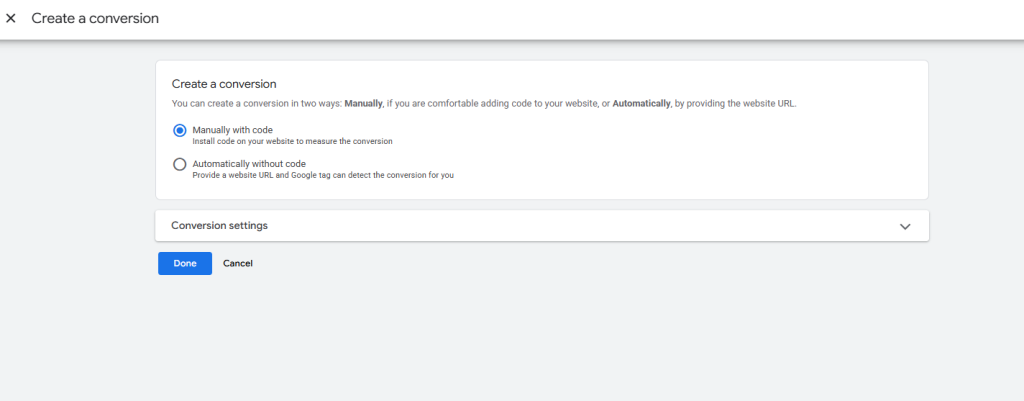
Step 1: Create a New Conversion Action
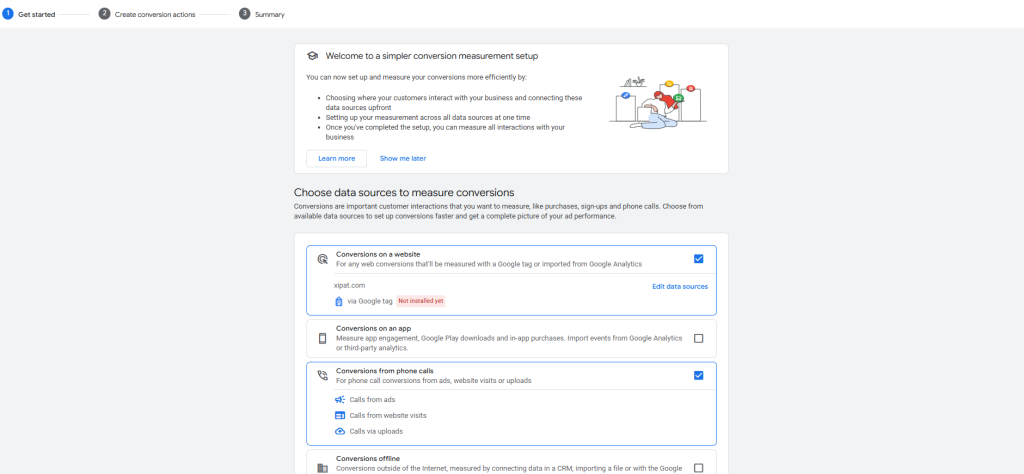
Click New conversion action and select the conversion source that matches your goal:
- Website
- App
- Phone calls
- Import (offline or third-party data)
This initial choice determines the setup path Google will guide you through, as each conversion type uses different tracking logic and validation methods.

Step 2: Choose How the Conversion Is Tracked
For website conversions, Google allows you to either:
- Scan your website for commonly detected events
- Or manually define a custom conversion action
At this stage, Google may suggest recommended events, but you can customize or skip them depending on your tracking strategy.
Step 3: Configure Conversion Settings
Next, define how conversions are measured and reported:
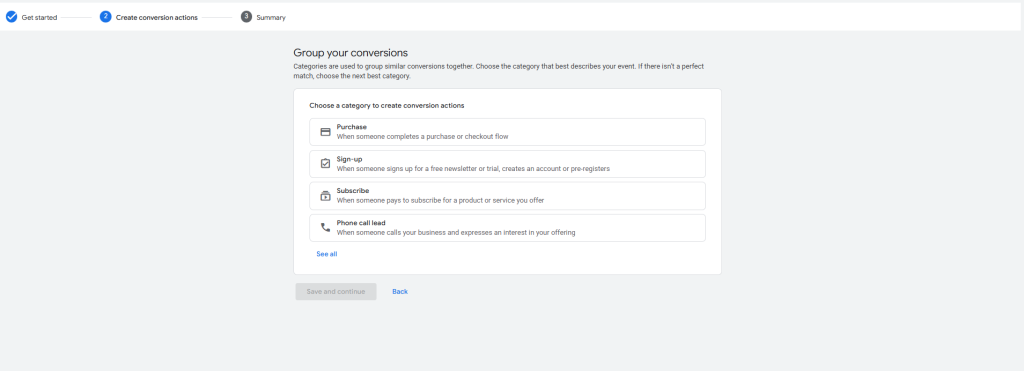
- Conversion name and category
- Value assignment and counting method
- Attribution model and lookback window
These settings directly affect reporting accuracy and automated bidding performance.
Step 4: Install the Conversion Tag
Depending on your setup, install the tag using:
- The Google tag
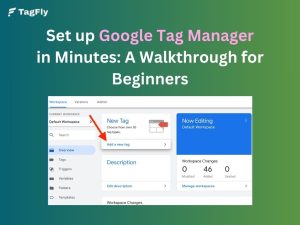
- Google Tag Manager
- Manual implementation
Tag installation differs significantly across conversion types, especially for phone calls and offline conversions.
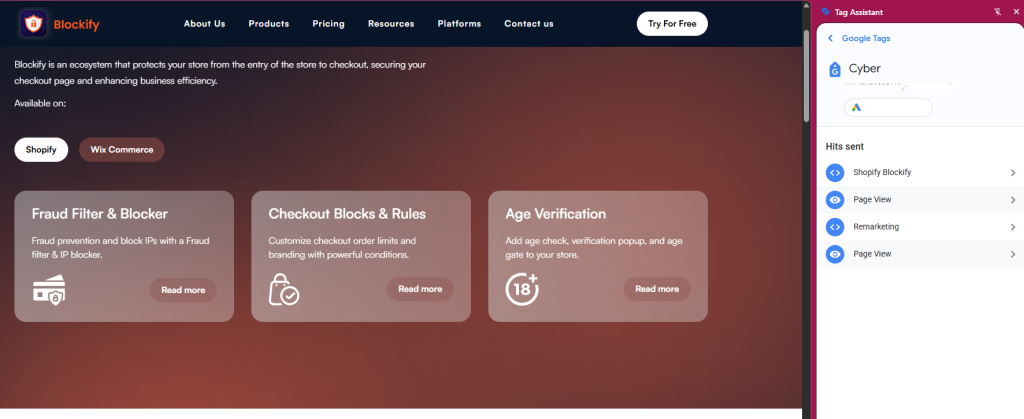
Step 5: Verify the Conversion Setup
After installation, confirm that the conversion is firing correctly by checking:
- Google Tag Assistant
- The conversion status column in Google Ads
Verification ensures Google receives reliable data before using conversions for optimization.
What is Server-Side Conversion Tracking?
Server-side conversion tracking is the best option for sending conversion data to Google Ads because it avoids user privacy issues and, at the same time, guarantees the reliability of data collected and sent. It spreads the events through your server, and you do not have to rely only on the user’s browser. Your server securely forwards the key actions, like purchases, form submissions, or sign-ups, through the use of your JavaScript, browser settings, or cookies.
This method solves many of the data-loss problems caused by ad blockers, iOS privacy restrictions, cookie limitations, and network interruptions. Because the data does not rely on the user’s device, it is typically more accurate, more complete, and harder to block.
Learn More: Top 8 Benefits of Server-Side Tracking You Shouldn’t Ignore
How to Set Up Server-Side Tracking for Google Ads
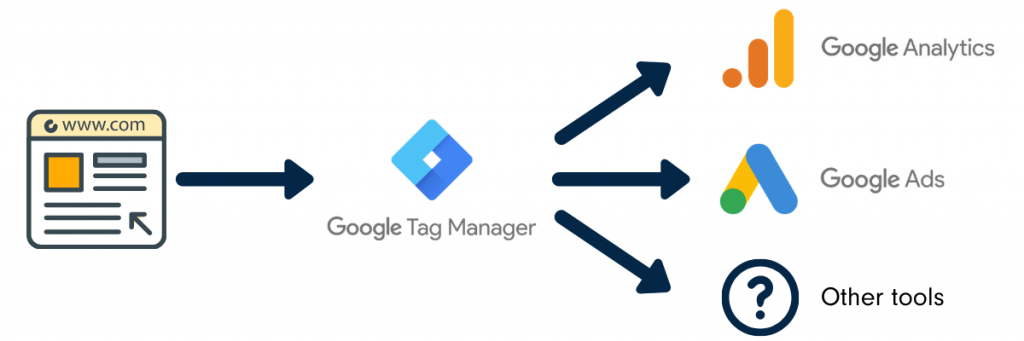
Server-side tracking is a different type of setup compared to the standard client-side tagging. Instead of sending the conversion events directly from the browser, they get routed to a secure server endpoint (usually the one set up in GTM Server Container). The setup process is as follows:
Step 1: Create a Server Container in Google Tag Manager
Develop a new Server Container and select an App Engine, Cloud Run, or a custom server as your deployment method.
This action sets up the endpoint to which your browser or app events will be routed.
Step 2: Connect Your Web Container to the Server Container
Activate the “Send to server container” feature in your Web GTM container.
As a result, browser-side events will be routed to your server endpoint for tracking that is cleaner and more reliable.
Step 3: Configure GA4 Server-Side Events
Create a GA4 tag within the Server Container that will accept the incoming events.
You can then enrich, validate, or modify the events before sending them to Google Ads.
Step 4: Add a Google Ads Conversion Tag in the Server Container
In the Server Container, create a Google Ads Conversion Tracking tag.
Your GA4 event parameters (like purchase value, currency, transaction ID) should be mapped to the Google Ads conversion fields.
Step 5: Activate Click ID Forwarding
It must be assured that the server-side system captures and forwards gclid, gbraid, and wbraid accurately.
This measure will eliminate the risk of losing attribution due to restrictions on cookies.
Step 6: Test with Debug Mode
The Preview mode of the Server Container can be used to check whether the events are received and subsequently forwarded.
Once confirmed, the Web and Server containers can both be published.
Best Practices for Accurate Conversion Tracking
Having precise conversion tracking is not just a matter of tag installation; it is rather a matter of establishing a clean and trustworthy data foundation that Google Ads will be able to utilize for its optimization.
Use Clear, Consistent Naming Conventions
Clear naming helps you quickly understand what each conversion measures and avoids confusion later. Names like Purchase – Google Ads, Lead Form – GA4, or Add to Cart – CAPI make reporting much easier.
In addition, consistency ensures smoother collaboration across teams. When everyone uses the same structure, troubleshooting becomes faster, and optimizations happen with fewer mistakes.
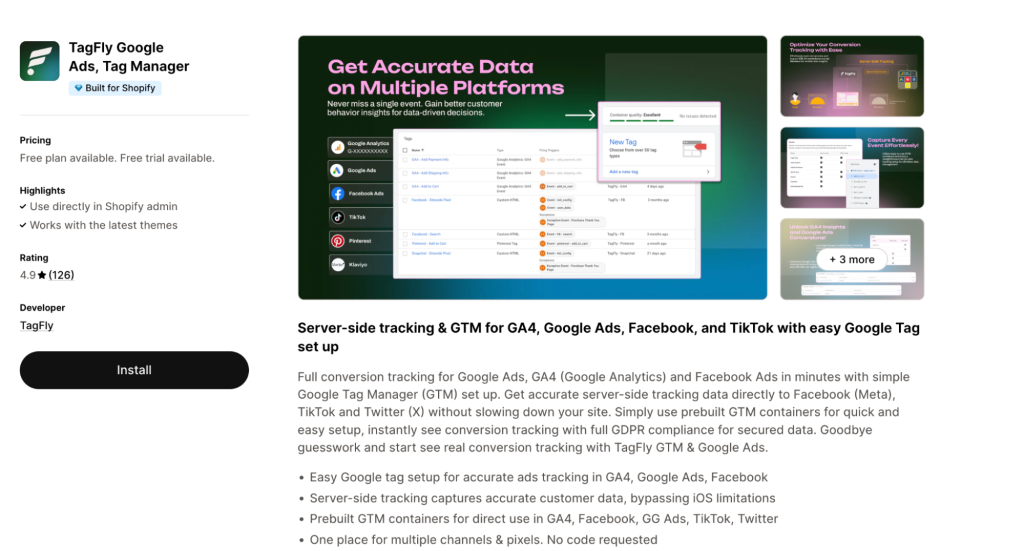
Use a Tracking Automation Tool to Avoid Tagging Errors
Manual tracking is usually responsible for inconsistent naming, duplicated triggers, and even event parameters not tracked. This is particularly difficult for eCommerce stores that are always changing. However, a tracking automation tool such as TagFly can take over the whole setup by auto-generating clean dataLayer events and GTM tags for major actions (add-to-cart, checkout, purchase, and form submissions).
Consequently, you benefit from a reliable, error-proof tracking setup without carrying out the manual debugging of scripts. This also means that your Google Ads signals are consistent and your conversion data is reliable even when there are changes on your site.
Verify All Tags With Preview & Debug Tools
Testing should be part of the tracking process to be sure it is accurate. Always make use of Google Tag Manager’s Preview Mode or Google Tag Assistant to check that events fire at the right moment.
On top of that, validation before publishing cuts down on misfires, duplicate events, and attribution issues, which are problems that can silently eat up budget and skew results.
Avoid Firing Multiple Tags for the Same Action
Duplicate tracking is often the cause of over-inflation of numbers, wrong bid strategies, and, therefore, unreliable performance insights. Clean and specific triggers help in avoiding such accidental double-counting.
As a result, your conversion data remains stark, giving Google Ads the opportunity to send the right signals for bidding and audience targeting optimization.
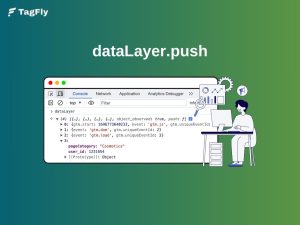
Use DataLayer Events for More Reliable Tracking
The dataLayer is the neatest source for organized event data. It doesn’t rely on easily breakable CSS selectors, and therefore, your tracking doesn’t get affected by a website layout change.
As a result of the inclusion of dataLayer events, their clear and standardized nature, Google Ads receives a clearer and more stable signal, which is great for conversions connected to dynamic carts or customized checkout flows.
Keep Conversion Windows and Attribution Settings Aligned With Your Sales Cycle
Short windows may cause under-reporting, while overly long windows can inflate conversions that aren’t truly influenced by ads. Match your settings to the actual buying behavior of your customers.
With properly calibrated attribution rules, your bidding strategies stay grounded in reality, helping Google Ads learn from the right actions and improve ROAS more effectively.
Conclusion
Conversion tracking is the backbone of every high-performing Google Ads strategy. When your data is clean and your setup is intentional, you give Google the clear signals it needs to optimize smarter, spend more efficiently, and bring in customers who actually convert. Treat your measurement as a system, refine it, test it, and keep it healthy, and your campaigns will follow.