With Google Tag Manager triggers, you can control when your tags will run; hence, they become a very important component of your whole tracking setup. The right trigger will ensure that every single action of the user, whether it is measuring clicks, form submissions, scrolling, or purchase events, is recorded properly.
| In this article, you’ll learn: ● What GTM triggers are and how they work ● The most common trigger types and when to use them ● Best practices for clean, reliable tracking ● How to troubleshoot trigger issues without guesswork |
What are Google Tag Manager Triggers?
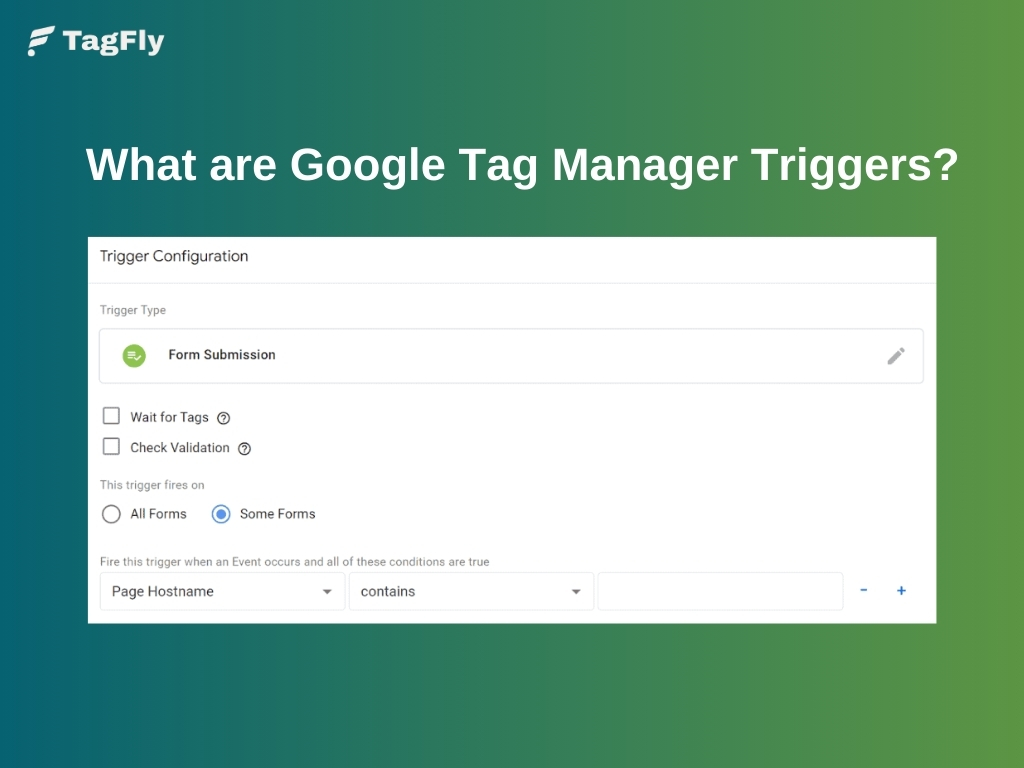
Google Tag Manager (GTM) triggers determine the moments when a tag is to be fired. Every tag, which could be Google Analytics, Meta Pixel, conversion events, or any custom scripts, needs the help of a trigger for it to be activated; if not, the tag simply stays inactive.
Triggers are like conditions that are directly related to user actions or webpage events, such as page views, clicks, form submissions, scroll depth, or e-commerce events. When the specified condition is satisfied, the tag is fired.
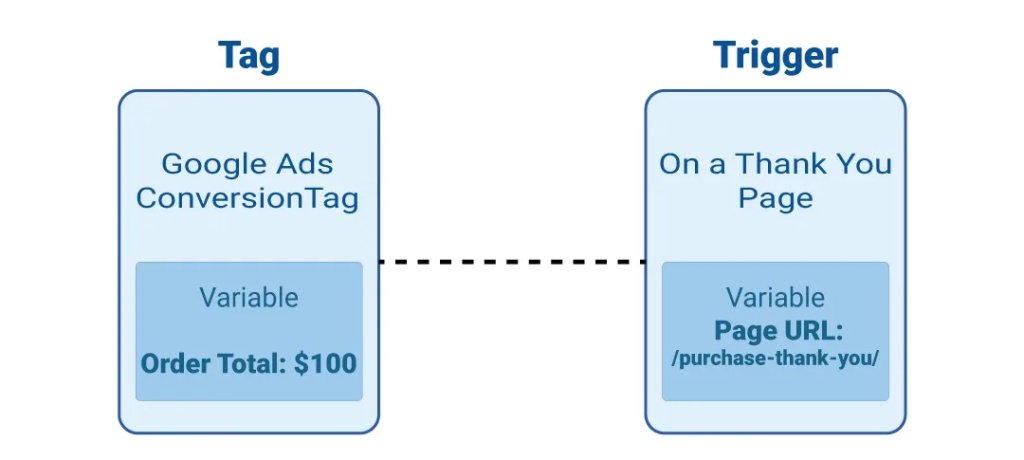
Triggers together with tags and variables constitute the fundamental logic of Google Tag Manager, providing you with the power to explicitly decide which interactions to monitor and at which points these tracking events will take place.
How Do Triggers Work in Google Tag Manager?
In Google Tag Manager, triggers are the ones that determine the fate of the tags by observing the actions taken by users on your website. They identify certain actions that are called “events” and check whether the actions correspond to the conditions you have outlined. Below is the way they actually work.
GTM Listens for Events on the Website
GTM is constantly listening to the Events occurring on the Website. GTM is always on the lookout for events happening on your website, like page loads, button clicks, form submissions, reaching scroll depth milestones, or executing custom dataLayer events.
These events serve as the first signal: “An event occurred. Is it time for the tag to be fired?”
Conditions Determine When a Trigger Fires
A trigger is composed of rules (conditions) that need to be true before it can become active.
For instance, a click trigger might be set to fire only when the click text includes “Buy Now”, while a pageview trigger could be fired only when the URL is exactly “checkout.”
Variables Supply the Data for Trigger Evaluation
The conditions that triggers rely on are checked using variables like Page URL, Click ID, Form Class, or custom dataLayer values.
If there were no variables, the trigger would have no data to assess, and hence it would not be able to make any decisions.
When Conditions Match, the Tag Fires
Once an event occurs and all conditions inside the trigger evaluate to true, GTM fires the associated tag.
If the conditions don’t match, the tag stays inactive, keeping your tracking cleaner and more accurate.
Most Common GTM Triggers Use Cases
You’ll notice that across websites and eCommerce stores, certain trigger patterns reveal the same basic principle: they are capturing the highest-value user actions. These use cases facilitate the measurement of intent, engagement, and conversions without the necessity of custom tracking for every situation.
- Tracking key button clicks: Such as CTAs, sign-ups, and add-to-cart interactions.
- Measuring form submissions: To track leads, checkouts, and other high-intent conversions.
- Capturing scroll depth: Useful for analyzing engagement on long content or product pages.
- Tracking outbound link clicks: Especially when users move to external payment gateways or partner sites.
- Detecting purchase events via dataLayer pushes: Critical for reliable eCommerce reporting and ad platform attribution.
Types of GTM Triggers (Complete List)
Pageview Triggers
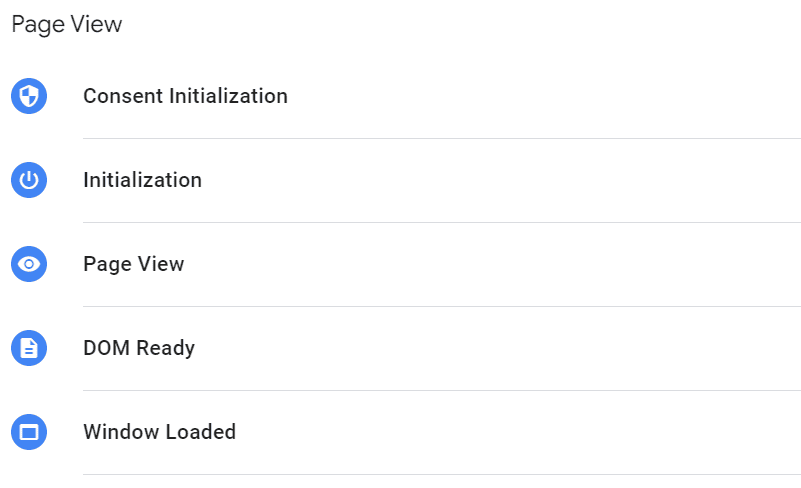
Pageview triggers are the most basic and fundamental form of triggers in Google Tag Manager. They automatically trigger every time a page is loaded, and they are hence the foundation of most tracking setups. Pageview triggers, due to the fact that they require no user interaction, ensure that essential tags are fired throughout your whole website in a dependable manner.
A Pageview trigger can activate at three different moments in the page-loading process:
- Initialization: fires before GTM itself loads.
- DOM Ready: fires once the page structure is fully parsed.
- Window Loaded: fires after images, scripts, and all resources finish loading.
Click Triggers
Click triggers are employed to fire tags that accompany user interactions with clickable elements of the site, such as buttons, links, menus, or custom UI components. They act quite differently from Pageview triggers, as they signal the presence of active user behavior, making the engagement tracking through simple page loads less than adequate.
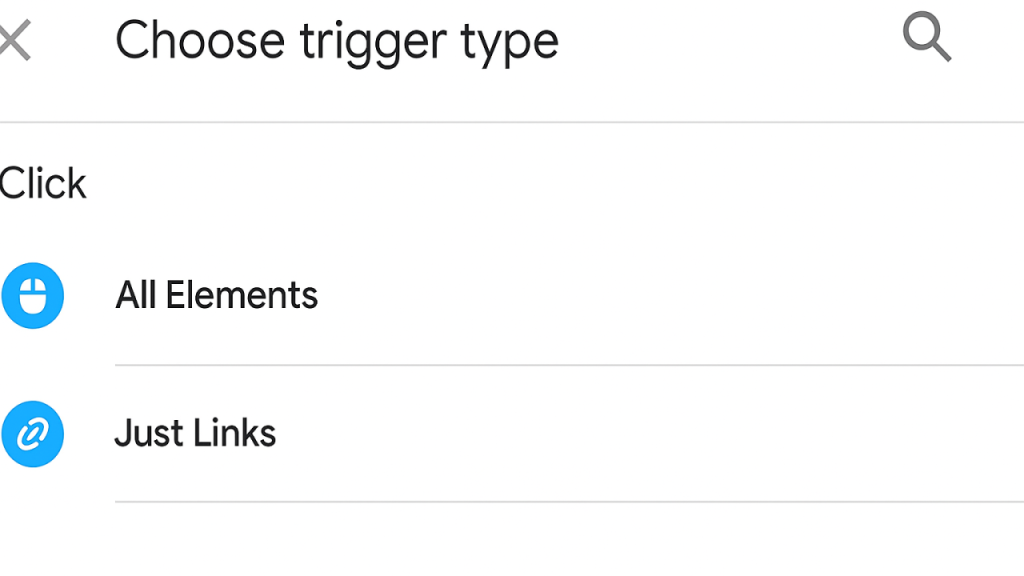
A Click trigger can activate at two different levels, depending on the type of interaction you want to measure:
- All Elements Click: fires whenever any element is clicked, giving you the most flexibility to target custom components (great for SPAs or scripted buttons).
- Just Links Click: fires only when a hyperlink (<a> tag) is clicked, useful for outbound link tracking, affiliate clicks, or navigation behavior.
User Engagement Triggers
In Google Tag Manager, User Engagement triggers fire when visitors perform actions on your page that indicate they are interested or that they are active, and these actions are not just simple clicks or page loads. These triggers help you measure how deeply users engage with your content, whether by scrolling, watching videos, or interacting with elements that reveal attention and interest.
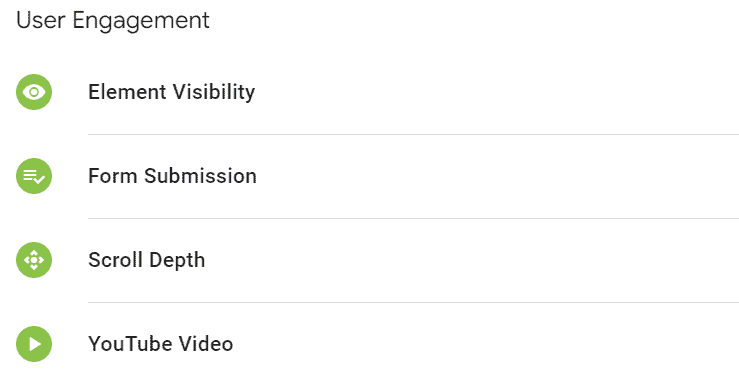
They generally activate when specific engagement thresholds are met. Depending on the type, GTM looks for the following conditions:
- Scroll Depth: fires when users reach a defined vertical depth (e.g., 25%, 50%, 75%).
- Element Visibility: fires when a chosen element enters the user’s viewport, often used to track whether key sections were actually seen.
- YouTube Video Interactions: fires on video plays, pauses, completions, or percentage watched when using embedded YouTube videos.
E-commerce & Conversion Triggers
E-commerce & Conversion triggers in Google Tag Manager fire when users take high-value actions linked to buying or completing goals, such as adding to cart, starting checkout, submitting a form, or completing a purchase. These triggers are essential for tracking revenue, funnel performance, and ad attribution across platforms like Google Ads, Meta, and TikTok.
Unlike basic triggers, which respond to page views or clicks, conversion triggers usually rely on specific user actions or data-layer events pushed by your e-commerce platform (Shopify, WooCommerce, Magento…) or custom scripts. Because of this, they are often tied directly to your data layer structure.
Common conversion trigger types include:
- Add to Cart events
- Begin Checkout / Initiate Checkout events
- Purchase / Transaction completion events
- Form Submission (Lead, Signup, Registration)
- Custom conversion events pushed to the dataLayer
Timing & Behavior Triggers
Timing & Behavior triggers in Google Tag Manager are based on user staying time on the page or browsing behavior, rather than immediate interaction like clicking. These triggers give you insights into passive engagement, interest level, and page retention patterns that traditional click-based tracking cannot disclose.
The triggers usually come into action when the relevant time- or behavior-based conditions are satisfied. Depending on the particular situation, GTM is checking conditions like:
- Timer Trigger: fires after a defined interval (e.g., every 5 seconds a user remains on the page).
- Scroll Timers / Activity Timers: fire when a user remains active for a certain duration or continuously interacts with the page.
- Session or Tab Activity Patterns: detect whether users keep the tab in focus or return after switching away.
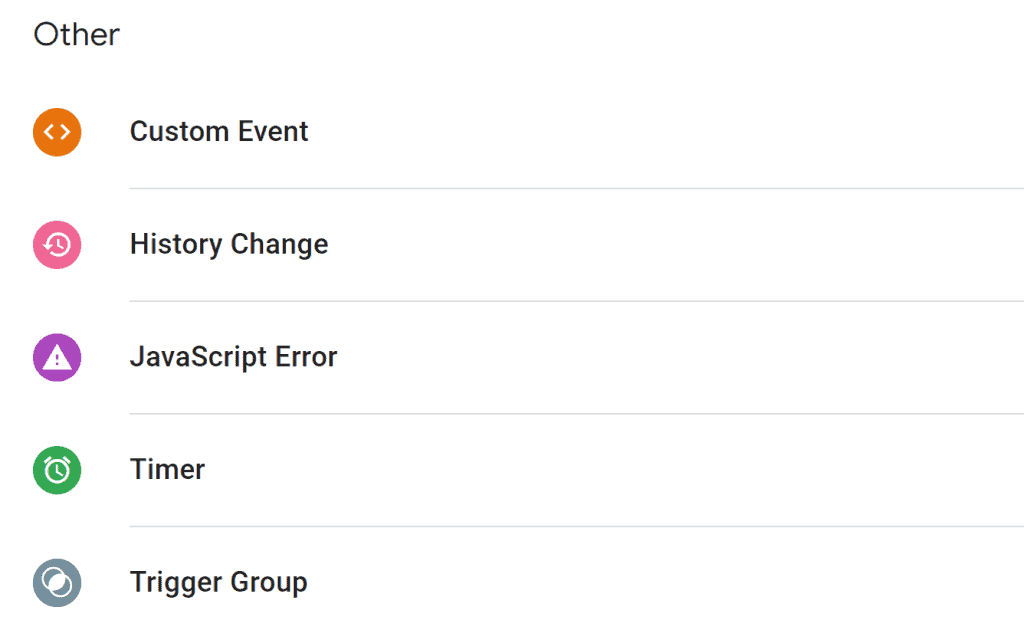
Error & Debugging Triggers
Error & Debugging triggers in Google Tag Manager fire when something goes wrong on the page, such as form submission errors, JavaScript errors, or failed interactions. These triggers help you uncover broken UX flows, track technical issues, and understand where users are getting stuck, especially on high-value pages like checkout or signup forms.
They activate when GTM detects specific error conditions. Depending on the configuration, GTM listens for:
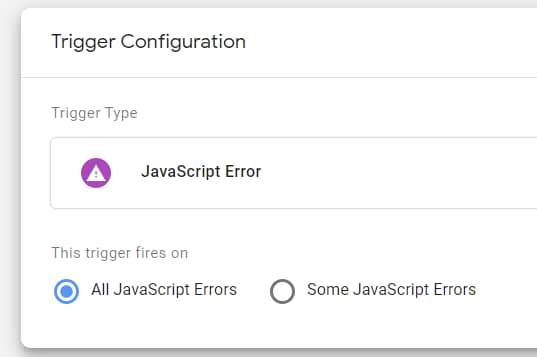
- JavaScript Error: fires when a script on the page breaks, useful for diagnosing issues that block conversions or disrupt UI.
- Form Validation Errors: fires when users attempt to submit incomplete or invalid forms, helping you see which fields cause the most friction.
- Error Message Visibility: fires when a designated error element becomes visible, often used on checkout or login pages.
How to Create a Trigger in Google Tag Manager (Step-by-Step)
According to Google’s latest official setup guidelines, this is the correct process for creating a trigger inside GTM:
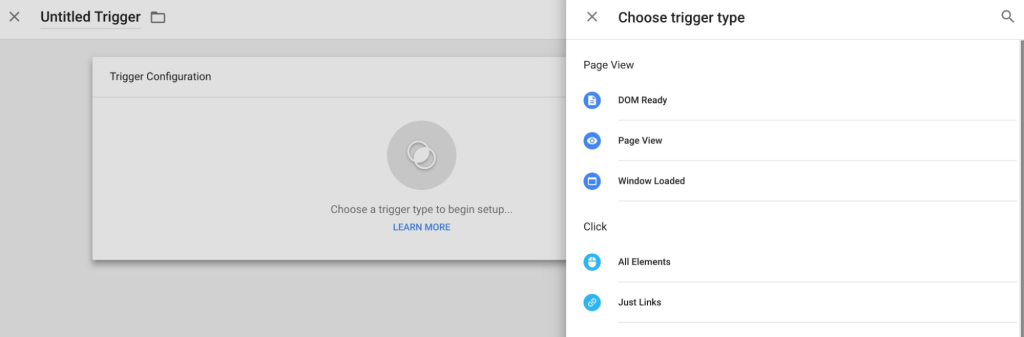
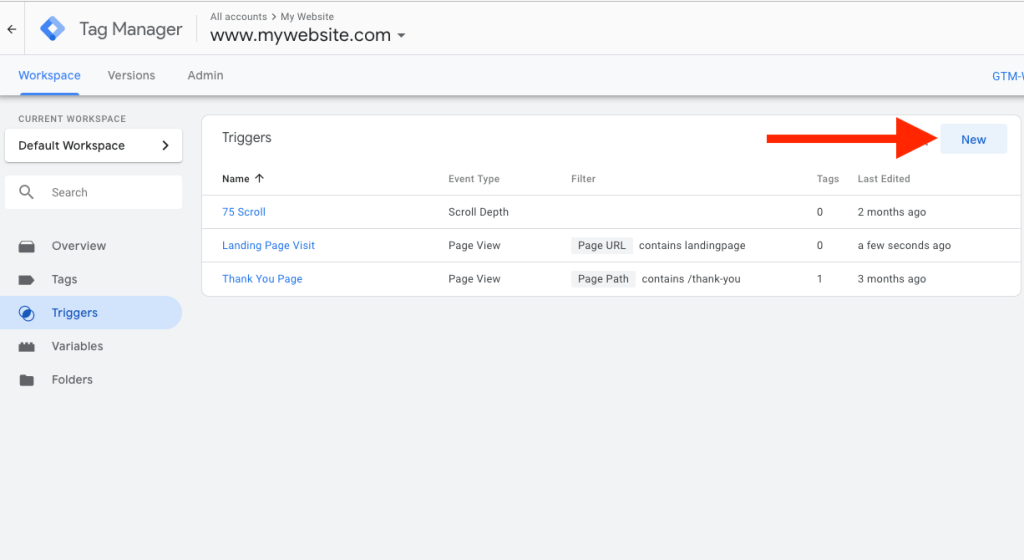
Step 1: Access your GTM workspace, click on Triggers, and then New.
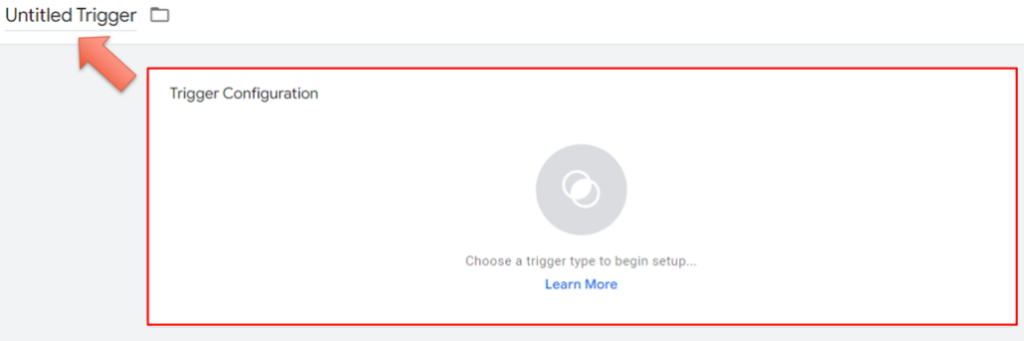
Step 2: Hit Trigger Configuration to get the list of trigger types that are ready to use.
Step 3: Pick the trigger type that suits your case the most (Page View, Click, Form Submission, Custom Event, etc.).
Step 4: Set up the criteria or filters that will decide when the trigger gets activated (for instance, URL matches a pattern, clicks on a certain element, or custom dataLayer event name).
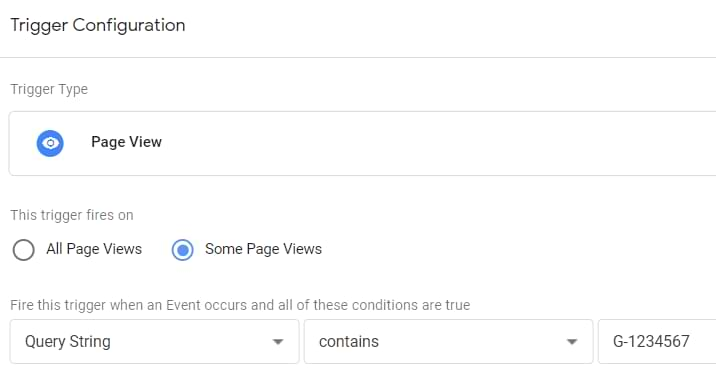
Step 5: Optionally, add exceptions (blocking triggers) to stop firing in undesirable situations.
Step 6: Click on Save, and the next step is to link the trigger to a Tag in Tag configuration. Each Tag needs at least one trigger; otherwise, it will not fire.
Best Practices for GTM Triggers
Keep Trigger Conditions Specific
Set your trigger rules tightly so that they will only activate when an exact action takes place. This step avoids bloated metrics and keeps your monitoring system concentrated on interactions that have significance.
You get to access data that is more accurate while at the same time reducing noise in analytics, making it easier to interpret and optimize insights.
Avoid Firing Tags Multiple Times
Firing tags more than once can lead to attribution being broken, conversion rates being inflated, and ad spend being wasted, particularly in the case of checkout or sign-up events. Allowing each tag to fire just once ensures both data integrity and revenue protection.
Thus, it is imperative to carry out regular audits of your triggers and be sure that every action corresponds with a single and well-defined event.

Validate Everything in Preview Mode
You can see a clear picture of when triggers go off and what data is being transmitted, all this before the go-live stage, through Preview Mode. It is the most reliable way to ensure that tracking errors do not reach production.
Hence, you not only catch errors earlier, but also avoid misfires, and keep the assurance that your live data corresponds to actual user behavior.
Use Consistent Naming Conventions
Proper naming (for instance, “Click – Add to Cart Button”) makes your GTM container navigation easier, particularly if it is becoming larger. Properly structured naming serves as a bridge for teams to work together without communication difficulties.
This approach ultimately leads to less time wasted in debugging and ensures that the new team members can very quickly get the hang of your setup.
Use dataLayer Events for Cleaner Tracking
Using a reliable structured dataLayer pushes empowers your triggers to activate based on dependable data instead of being heavily dependent on sensitive CSS selectors. This gives you a more secure environment during page redesign and theme updates.
Consequently, tracking is stable, your trigger logic is clear, and your measurement system is much more adaptable to future changes.
Using TagFly for Faster and Cleaner Trigger Setup
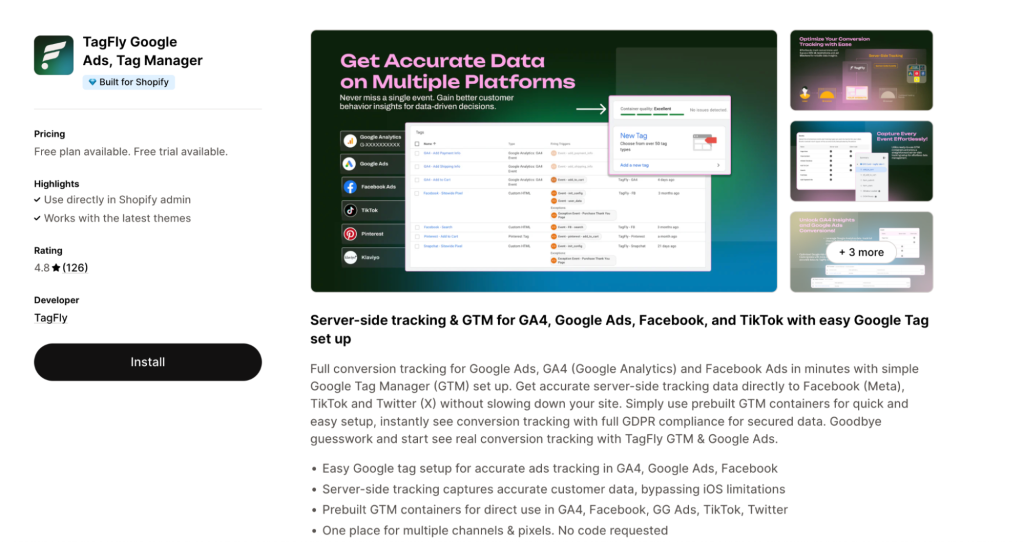
TagFly lays a solid groundwork for GTM by providing pre-built dataLayer events and ready-to-use trigger structures, allowing merchants to skip most of the manual mapping that typically slows tracking setup. With the event logic already standardized and consistently fired, your GTM environment starts off cleaner and far less prone to firing discrepancies.
As a result, your triggers become more dependable from day one, giving you stable analytics and fewer troubleshooting cycles while you focus on optimizations that actually grow the business.
Troubleshooting GTM Trigger Issues
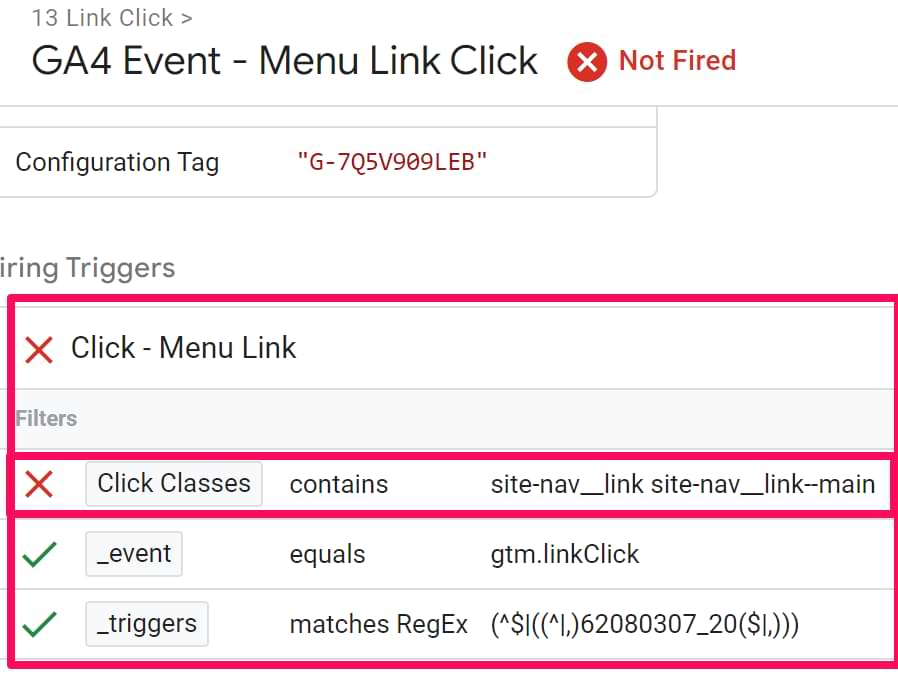
When triggers do not produce the desired results, mismatched conditions, broad rules, or overlapping logic are often the culprits. Going through the essentials quickly may enable you to diagnose the problems at once. Below are the main issues to look for:
- Trigger not firing: user actions do not match the conditions, wrong selectors are used, or the required values are not being sent through dataLayer events.
- Trigger firing too many times: rules applied are too general (e.g., “All Clicks”), or the page unintentionally creates repeated events.
- Trigger conflict: overlapping logic causes multiple triggers to fire at the same time, particularly on dynamic or script-heavy pages.
- Preview & Debug Mode not utilized adequately: the majority of problems are only revealed with real-time events, variable values, and firing behavior being displayed in GTM’s preview tool.
Conclusion
Although Google Tag Manager triggers are modest, they set apart clean and reliable data from a messy and puzzling setup. By having clear rules, good naming, and proper testing, you gain control over the tracking behavior.
There is, indeed, a certain satisfaction that comes with witnessing events occurring precisely as intended. With the right practices (and tools), GTM becomes a partner that you can rely on for smart campaigns and clear insights.